
Open Badge Expiration and Renewal: Lifecycle Management for Time-Limited Credentials
CE credits, certifications, and licenses all expire. Set expirationDate on Open Badges and renew them programmatically. Schema + workflow.
 By Nacho Coll
Nacho founded Badges Ninja to make issuing verifiable digital credentials as simple as a single API call — Open Badge v2.0 badges and certificates, minted, hosted, and verifiable without standing up your own issuer infrastructure.
Some credentials are for life. A degree does not stop being true because ten years have passed. But a large share of the credentials training teams issue are the opposite: a two-year cybersecurity certification, an annual forklift-safety refresher, a CPR card, a continuing-education credit that is only valid for one reporting cycle. These credentials are a statement that someone was competent as of a date, and the statement has a shelf life.
If your digital credentials never expire, you are quietly telling employers and auditors something that is not true. This article walks through how expiration works in Open Badges, what a verifier sees when a credential lapses, and a practical renewal workflow that does not require you to write code unless you want to.
One naming note before we start
You will see people search for “expirationDate”. In the Open Badges v2.0 specification, the field on an assertion (the award itself, as opposed to the badge class) is called expires. It is an ISO 8601 date-time string. The API field you send when issuing a credential on https://badges.ninja is also called expires. Same idea, different name than most people guess, so keep that in mind when you read a JSON-LD document or search the docs.
Two details worth knowing:
- Expiration lives on the award, not on the badge. The same badge (say, “Annual Safety Training”) can be issued to one person with an expiry in March and to another with an expiry in September. That is what you want, because validity is counted from when each person completed the training.
- It is optional. Leave it off and the credential never expires.
Setting an expiry when you issue
You have three ways to set a validity period. Start with the first two, since they need no code.
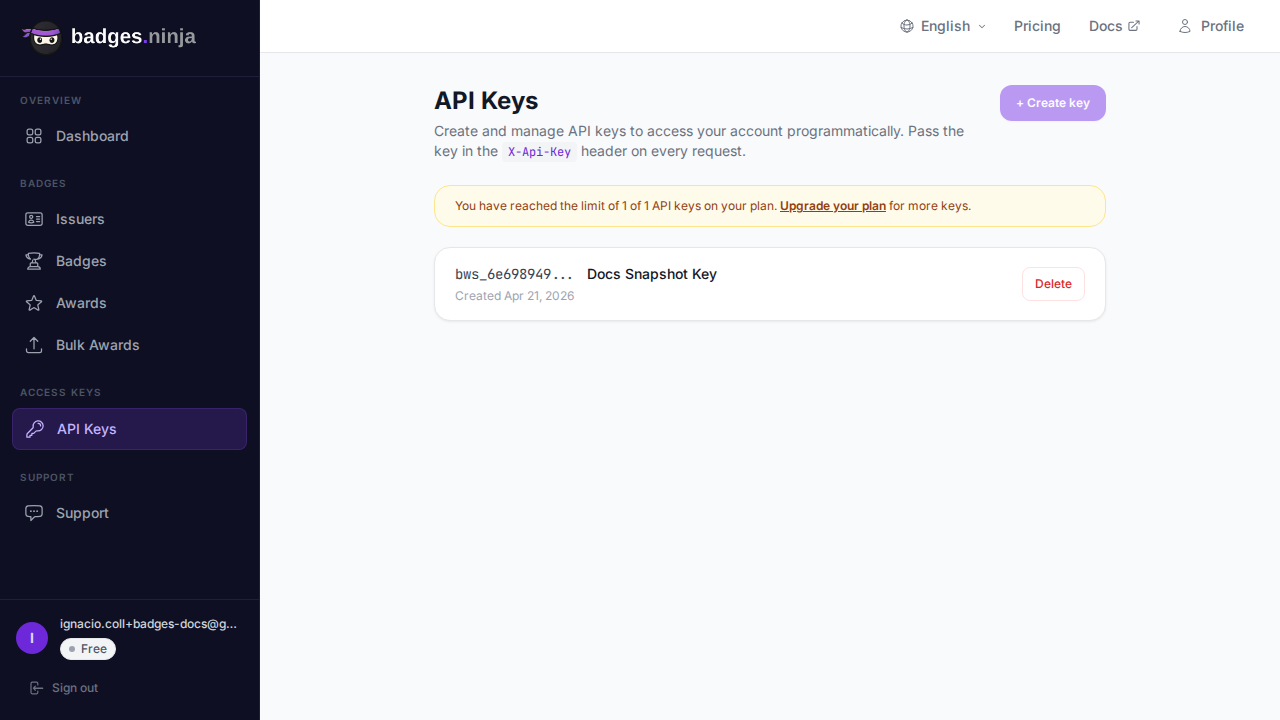
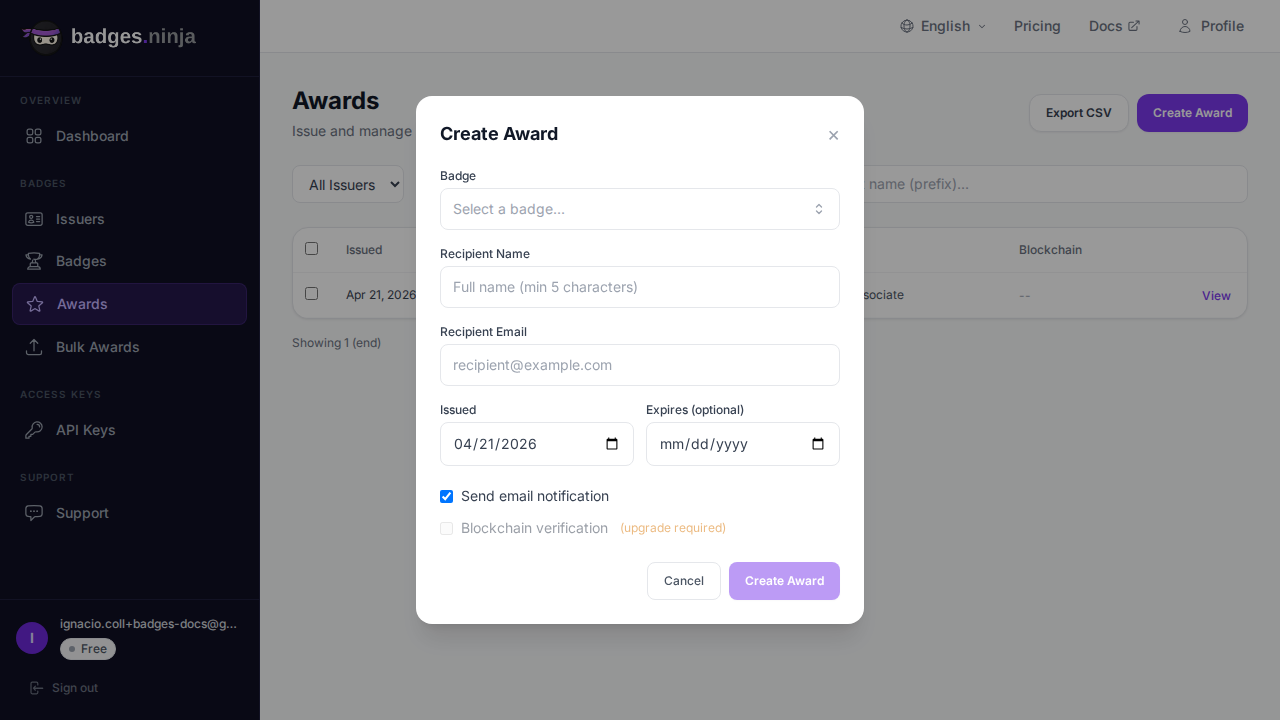
The dashboard form. When you create a credential, the form has an optional “Expires” date field next to the recipient name and email. Pick the date and issue. That is the whole job.
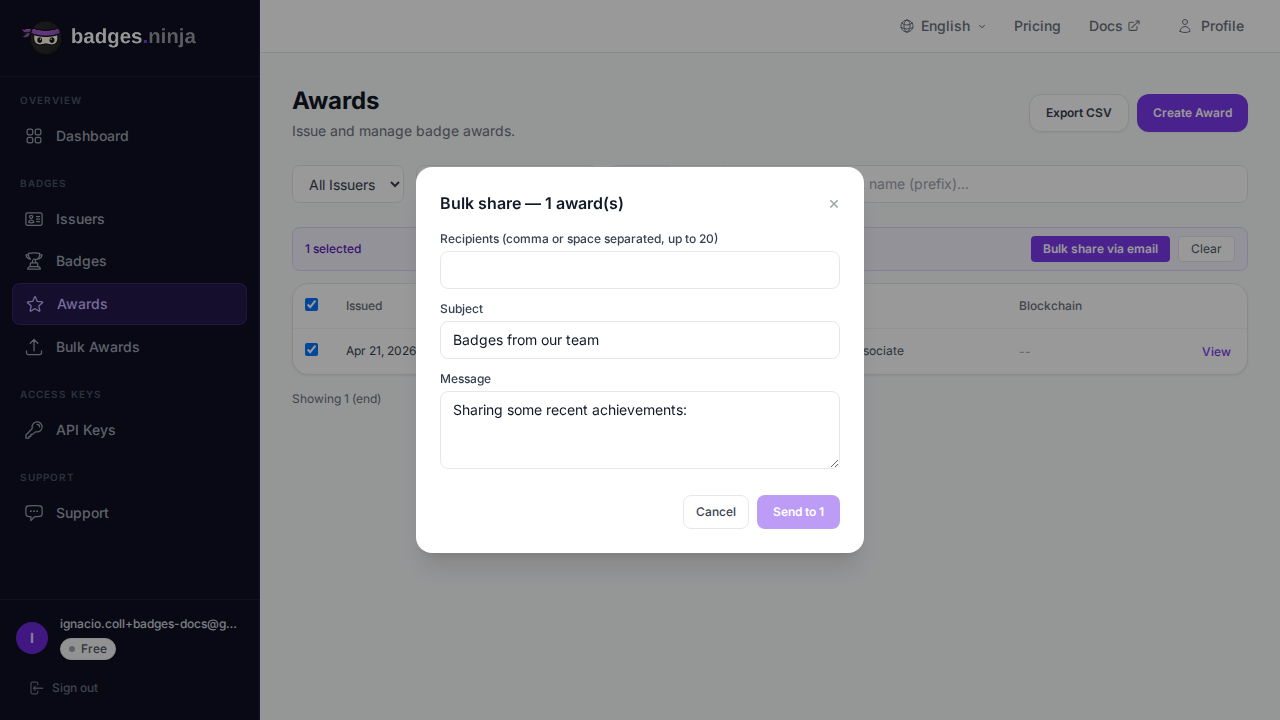
Bulk awards. If you are issuing to a whole cohort, the bulk awards page takes a CSV of recipients and applies a single expiry date to the batch, so a class that finished the same week gets the same lapse date. You can pause and resume a large batch. Our walkthrough on issuing Open Badges from a CSV covers the file format.
The API. For automation, such as a learning-management-system hook that issues a credential when someone passes the exam, add expires to the POST /awards body. It accepts the same formats as issuedOn: epoch milliseconds or an ISO date string.
// Issue a 2-year certification
const issuedOn = Date.now();
const twoYears = 2 * 365 * 24 * 60 * 60 * 1000;
const res = await fetch("https://api.badges.ninja/awards", {
  method: "POST",
  headers: { "X-Api-Key": API_KEY, "Content-Type": "application/json" },
  body: JSON.stringify({
    badgeId: "your-badge-id",
    recipient: { name: "Jane Smith", email: "jane@example.com" },
    issuedOn,
    expires: issuedOn + twoYears,
  }),
});
const { awardId } = await res.json();       // 200 OK
const verifyUrl = `https://badges.ninja/awards/${awardId}`;
The same call in Python:
import time, requests
issued = int(time.time() * 1000)
two_years = 2 * 365 * 24 * 60 * 60 * 1000
res = requests.post(
    "https://api.badges.ninja/awards",
    headers={"X-Api-Key": API_KEY},
    json={
        "badgeId": "your-badge-id",
        "recipient": {"name": "Jane Smith", "email": "jane@example.com"},
        "issuedOn": issued,
        "expires": issued + two_years,
    },
)
award_id = res.json()["awardId"]            # 200 OK
The recipient name must be at least five characters, issuedOn is required, and a successful call returns HTTP 200 with { awardId }. The verification URL is not in the response; you build it from the id as shown. The full request contract is in the awards API reference.
Behind the scenes, the platform normalizes whatever you send into an ISO 8601 string and stores it in the Open Badges assertion as expires.
What a verifier sees
This is the part that matters most, because an expiry date nobody checks is decoration.
Every award has a public verification page at https://badges.ninja/awards/<awardId>, and no signup is needed to view it. The page compares the expiry date against today’s date each time it loads:
- Before the expiry date: the page shows the credential as valid and displays a “valid until” line with the date.
- After the expiry date: the page switches to an “Expired on” notice with the date. The credential is still there, so the history is intact, but nobody can mistake it for a current one.
- If the credential was revoked: revocation takes precedence over expiry. A revoked credential shows as revoked, not as merely expired.
Machine verifiers get the same information from the Open Badge v2.0 JSON-LD document at https://api.badges.ninja/certify-badge/award/<awardId>, where the assertion carries the expires field. Any tool that reads the standard can apply its own policy. An HR system might refuse an expired credential outright, while an alumni directory might show it as “formerly certified”.
The credential also carries the date outward. The “Add to LinkedIn” button on the award fills in the expiration month and year on the LinkedIn certification entry, so the person’s profile reflects the same lapse date you set. The downloadable PDF certificate prints an “Expires” date next to the issue date, too.
One consequence worth stating plainly: expiry is evaluated at the moment someone looks, not by a job that runs on your side. You do not have to do anything on the day a credential lapses. Nothing gets “switched off”; the verification page simply tells the truth about the date.
Seeing what is about to lapse
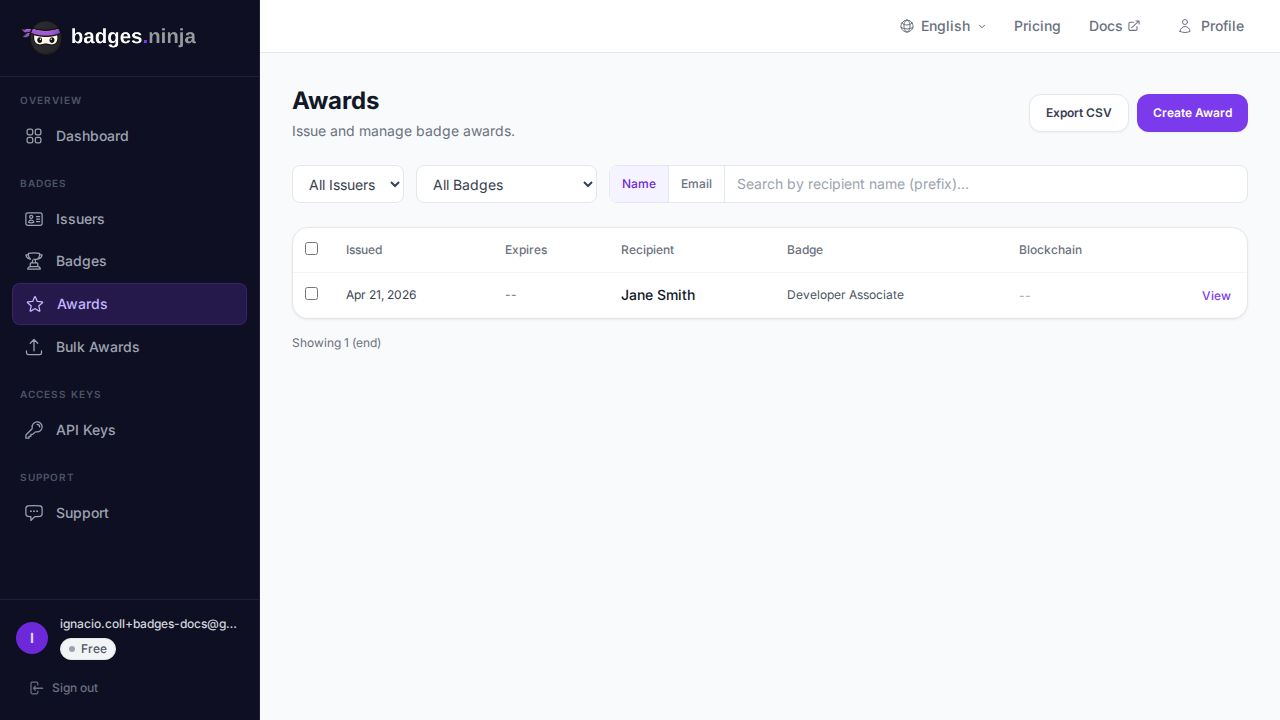
Programs that track renewals need a list of who is coming up for renewal. The awards page in the dashboard has an Expires column showing each credential’s date, and opening a credential shows a banner: Active, Expires on a date, or Expired on a date.
For a renewal campaign, the easiest route is to select the rows you care about and use Export CSV. The export includes a “Valid To” column. Open it in a spreadsheet, sort by that column, and you have a renewal pipeline for the next quarter in about a minute.
We should be honest about one limit: the platform does not currently send automated “your credential expires soon” emails to recipients on its own. Treat the reminder as a step in your own process. A common pattern is a calendar entry on the first of each month: export the CSV, filter for dates in the next 60 to 90 days, and send those people your renewal instructions from your normal email tool. For most programs with a few hundred credentials, this takes ten minutes a month and is far less work than building a notification system.
If you do want to automate it, the awards list endpoint (GET /awards) returns your credentials in pages of 50, and each record includes its expiry. A scheduled script that walks the list and emails anyone expiring within 60 days is a small project. But try the spreadsheet first and only automate when the manual step actually hurts.
Renewal patterns
When someone renews, what should happen to the credential? There are three reasonable patterns, and the right one depends on how your certification program is defined.
Pattern 1: Issue a new award (recommended)
This is the cleanest approach. The person completes the refresher or the recertification exam, and you issue a new award from the same badge with a fresh issue date and a new expiry date. They now hold two credentials with the same badge: the old one, which shows as expired, and the new one, which shows as active.
Why this is usually right:
- Each credential records an honest history: issued on this date, valid until that date.
- The old public URL keeps working and keeps saying “expired”, which is accurate. Nobody who bookmarked it is misled.
- The new award gets its own verification URL, PDF certificate, and Add to LinkedIn entry. The person can replace the old LinkedIn entry or keep both to show continuous certification.
- Your reports can count renewals simply by counting awards per recipient for a badge.
To keep the link between old and new, put it in the badge criteria or your own records. A recertification badge can say “Renewal of Annual Safety Training, valid after completing the refresher.” If you need a hard link in your own system, store the old and new awardId values together in your learning-management or HR database when you issue the new one.
Pattern 2: Edit the expiry in place (only before it is sent)
The platform supports editing a credential in place, but only while it has not yet been emailed and has not been revoked. Within that window you can fix the recipient name, email, issue date, or expiry date without changing the award’s URL. This is for correcting mistakes, such as a wrong expiry date typed during setup, not for extending a credential someone already holds.
Once a credential has been emailed to the recipient, it is locked. If you need to change it after that, the supported route is to revoke it and issue a new one. That brings us to the third pattern.
Pattern 3: Revoke and re-issue
Use this when the credential should no longer be considered valid at all, for example the person lost their license mid-term, or you issued it with the wrong badge. It is not the normal renewal path, because revocation sends a stronger signal than expiry: it says the credential should not have been trusted, not merely that its term ended. Our step-by-step on revoking an Open Badge covers when each is appropriate.
A good rule of thumb: expiry means the term ended; revocation means something was wrong. Do not revoke credentials just because they lapsed. Let them expire and keep the record.
Picking a validity period
Expiry dates are policy decisions, and getting them wrong creates real headaches. Some guidance from programs we see working well:
| Credential type | Typical validity | Notes |
|---|---|---|
| Cybersecurity or IT certification | 2 to 3 years | Tools and threats change quickly |
| Annual safety training | 12 months | Often tied to a regulatory requirement |
| First aid and CPR | 2 years | Follow your regulator’s rule, not a convention |
| Continuing-education credit | End of reporting cycle | Align with the cycle so renewals batch together |
| Course completion | No expiry | Completion is a fact; leave expires off |
Two practical tips. First, align expiry dates to a calendar rhythm where you can. If everyone in a cohort lapses on the same date, renewal becomes one campaign instead of fifty. Second, do not put an expiry on credentials that are really records of completion. A badge that says “attended the 2025 conference” does not become less true next year, and an expiry date on it only creates confusion.
A worked example: a two-year security certification
Putting it together for a training team that runs a security-awareness certification for a company of 400 employees.
- Design the badge once in the visual designer. Name it, set the criteria (pass the exam with a score of 80 percent or higher), and describe the validity period in the description so recipients know what they are signing up for.
- Issue with an expiry. After each exam session, upload the pass list through bulk awards with the expiry set to two years out. Each person receives their email with the verification link, PDF certificate, and Add to LinkedIn button.
- Check monthly. On the first of the month, export the awards list, sort by “Valid To”, and pull everyone expiring in the next 90 days.
- Invite them to renew. Send those people the recertification exam link from your normal email tool.
- Issue the renewal. When someone passes, issue a new award from the same badge with a new two-year expiry. The old one shows as expired on its own; do nothing to it.
- Answer auditors with a link. When compliance asks whether a person is currently certified, you send the verification URL. It shows the current status without you checking anything.
No custom software, no cron jobs, no migrations. That is the point: lifecycle management is mostly a matter of choosing sensible dates and having a monthly habit.
Common mistakes
- Setting an expiry on everything. Reserve it for credentials whose meaning really does fade. Otherwise you create renewal work with no benefit.
- Confusing expiry with revocation. Revoking lapsed credentials destroys the history of continuous certification and makes the person look like they were never valid.
- Forgetting the timezone. The date you pick becomes a point in time. If a regulation says “valid through the end of March”, set the expiry to the last day of March, or the first day of April, depending on how your policy reads, and be consistent.
- Planning to edit instead of re-issue. Editing is only available before the credential is emailed. Plan renewals as new awards from the start.
- No reminder process. Because expiry notices are not automated, the habit has to be yours. Put the monthly export on someone’s calendar.
Where to go next
If your credentials are going to be checked by other systems, it is worth reading how the document that carries expires is structured: Open Badge JSON-LD example walkthrough walks through every field of an assertion. And if you are weighing whether to keep paying a platform per credential for all of this, our Credly alternative comparison lays out the costs.
Ready to issue your first verifiable credential? Start free at badges.ninja — visual designer, public verification page, PDF certificate, Open Badge v2.0 output. No credit card required.
About the author
Nacho Coll
Founder & Engineer at Badges Ninja
Nacho founded Badges Ninja to make issuing verifiable digital credentials as simple as a single API call — Open Badge v2.0 badges and certificates, minted, hosted, and verifiable without standing up your own issuer infrastructure. Writes about the Open Badges spec, credential verification, and running a credentialing platform serverless on AWS, from the operator side of the wire.