
How to Issue Open Badges from a CSV in Under 5 Minutes
Step-by-step: upload a CSV of recipients, pick your badge, hit Award. Pause and resume mid-batch, retry failures, export results. Works for cohorts of 10 or 10,000.
 By Nacho Coll
 Nacho founded Badges Ninja to make issuing verifiable digital credentials as simple as a single API call — Open Badge v2.0 badges and certificates, minted, hosted, and verifiable without standing up your own issuer infrastructure.
If you’ve ever issued credentials to a cohort one recipient at a time, you already know the problem: it doesn’t scale past about ten people before it turns into an afternoon of copy-pasting names and emails. A 40-person bootcamp cohort, a 500-person conference attendee list, or a 5,000-person corporate training rollout all need the same thing — upload a list, pick a badge, click Issue, walk away.
That’s exactly what Bulk Credentials on https://badges.ninja does. This walkthrough covers the whole flow: preparing your CSV, configuring the batch, watching it run, and handling the messy real-world cases — a recipient row with a typo, a batch that gets interrupted halfway through, or a program that wants to issue the same way from its own systems instead of the dashboard.
Before You Start: What You Need
Two things, both of which you probably already have:
- A badge — designed once in the visual designer, reused for every recipient in the batch. If you haven’t built one yet, see our guide on designing your first verifiable certificate.
- A CSV of recipients — name, email, and (optionally) an issue date. That’s the whole schema.
You do not need an issuer account per recipient, a mail server, or any code. Everything in this section happens in the dashboard.
Step 1: Prepare Your CSV
The recipient list format is deliberately minimal:
name,email,issued_on
Maria Gonzalez,maria@example.com,2026-07-01
David Kim,david@example.com,2026-07-01
Priya Patel,priya@example.com,- name — required. Populates the recipient field on the assertion and the certificate.
- email — required. This becomes the recipient identity on the Open Badge v2.0 assertion — hashed with a per-credential salt before it’s stored, never kept in plaintext.
- issued_on — optional. Leave it blank and the batch uses the moment each row is processed; set it explicitly if you’re backfilling a cohort that actually finished last month.
Most program owners export this straight from wherever they already track completions — Airtable, Google Sheets, a spreadsheet handed over by an instructor, or a CSV pulled from an LMS gradebook. There’s no special export tool required; any CSV with those three columns works.
Common CSV Pitfalls (and How the Preview Catches Them)
A handful of issues show up constantly in real-world recipient lists, usually because the CSV was assembled by merging two or three source sheets:
- Trailing whitespace in email addresses — a copy-paste from a PDF roster or a Google Form export often carries an invisible space. It looks fine in a spreadsheet cell but fails email validation on upload.
- Duplicate rows — the same recipient appearing twice because a cohort list and a late-registrants list got concatenated without deduplication.
- Inconsistent date formats — one column of
2026-07-01mixed with07/01/2026from a different export. Stick to ISO 8601 (YYYY-MM-DD) and this disappears entirely. - Header casing mismatches —
EmailvsemailvsE-mail. The parser is forgiving about common variants, but a completely custom header name won’t map automatically.
None of these are fatal — the preview step (below) surfaces each one before anything is issued, so the fix is “edit the spreadsheet, re-upload” rather than “figure out which of 3,000 recipients got a broken badge.”
Step 2: Configure the Batch
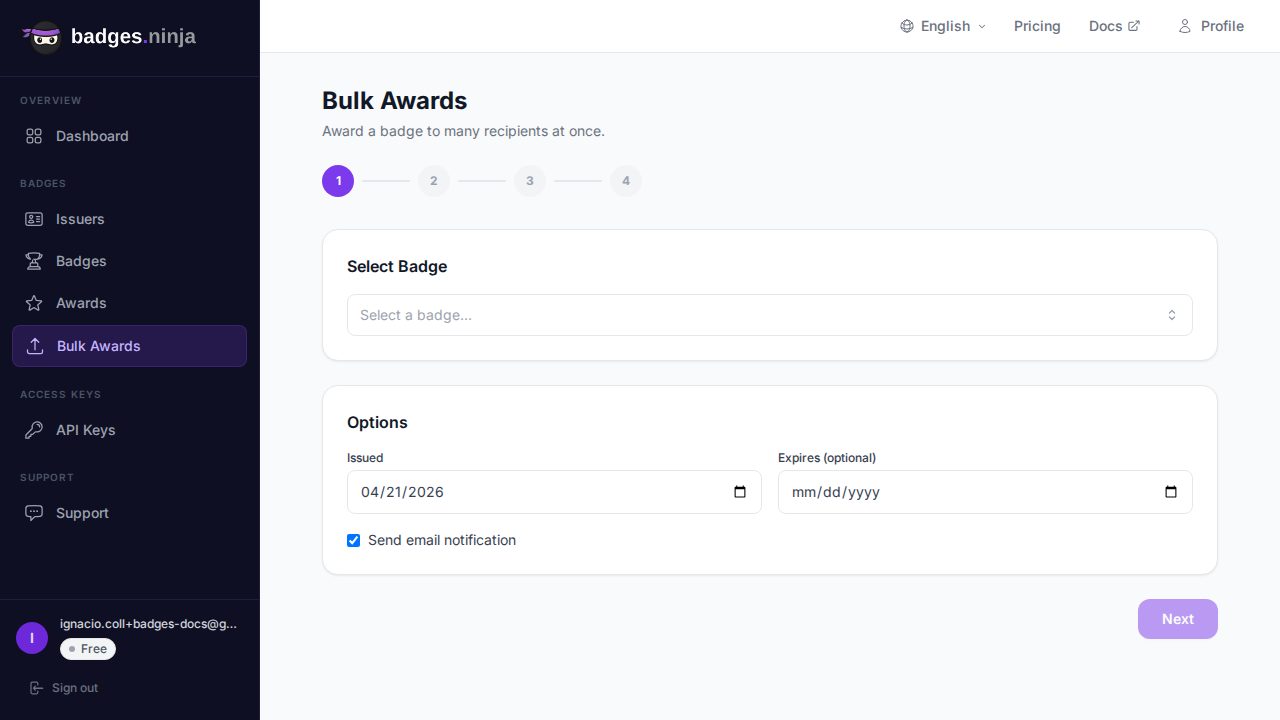
From the dashboard, open Credentials → Bulk Credentials and pick the badge you’re issuing. This is the step where you set anything that applies to the whole batch: the badge itself, a shared issue date if you’re not putting per-row dates in the CSV, and (if your issuer profile has one) the LinkedIn organization ID that will let every recipient add the credential to their profile in one click.
This is a good moment to double-check the badge you’ve selected is the final version — recipients will see whatever image and criteria are attached to it at the moment you issue, not whatever you update it to later.
Step 3: Upload and Preview
Drop your CSV in and the platform parses it, shows you a preview table, and flags anything it can’t process — a missing email, a malformed date, a duplicate row. Nothing gets issued until you confirm the preview.
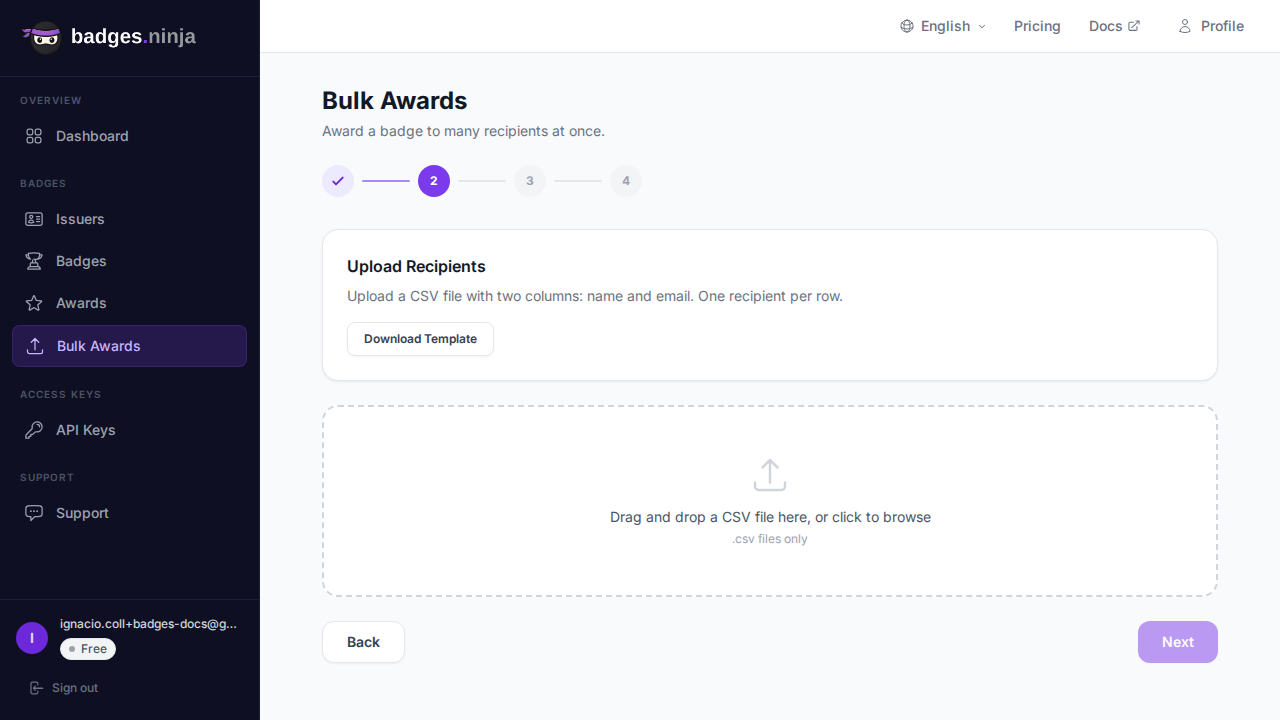
This preview step matters more than it looks. A typo in one row of a 2,000-row CSV is easy to miss by eye, and it’s much cheaper to catch it before 1,999 correct rows are already issued than to try to unwind it after. Fix the flagged rows in your spreadsheet, re-upload, and the preview updates.
Step 4: Run the Batch
Hit Issue and the batch starts processing. A progress bar tracks completed vs. remaining rows, and the batch runs server-side — you don’t need to keep the tab open, and closing your laptop mid-batch doesn’t lose your place.
That last part is worth spelling out because it’s the detail that actually matters for large cohorts: batch state lives on the server, not in your browser. If your connection drops, your laptop sleeps, or you just close the tab because a meeting starts, the batch keeps running (or resumes exactly where it left off if you paused it) rather than restarting from zero. For a 40-person bootcamp cohort this is a nice-to-have. For a 5,000-row corporate rollout, it’s the difference between “it just works” and “someone has to babysit a browser tab for twenty minutes.”
You can also pause a running batch deliberately — say, someone flags that the badge criteria text needs a tweak halfway through a 3,000-row run — fix the issue, and resume without re-issuing the rows already completed.
Step 5: Handle Failures
Real recipient lists have bad rows: a typo’d email domain, a name field that’s actually empty, a duplicate entry from two exported sheets getting merged. When a row fails, the batch doesn’t stop — it keeps processing the rest and flags the failure for review afterward. You get a results export showing exactly which rows succeeded and which didn’t, so you can fix just the failed rows and re-run a small follow-up batch instead of re-checking the whole list.
This matters for the CSV-export habit that’s already common on the credentials dashboard — you can pull a CSV of what actually got issued at any point, cross-reference it against your source list, and know precisely who still needs a badge.
The API Path: Same Flow, No Dashboard
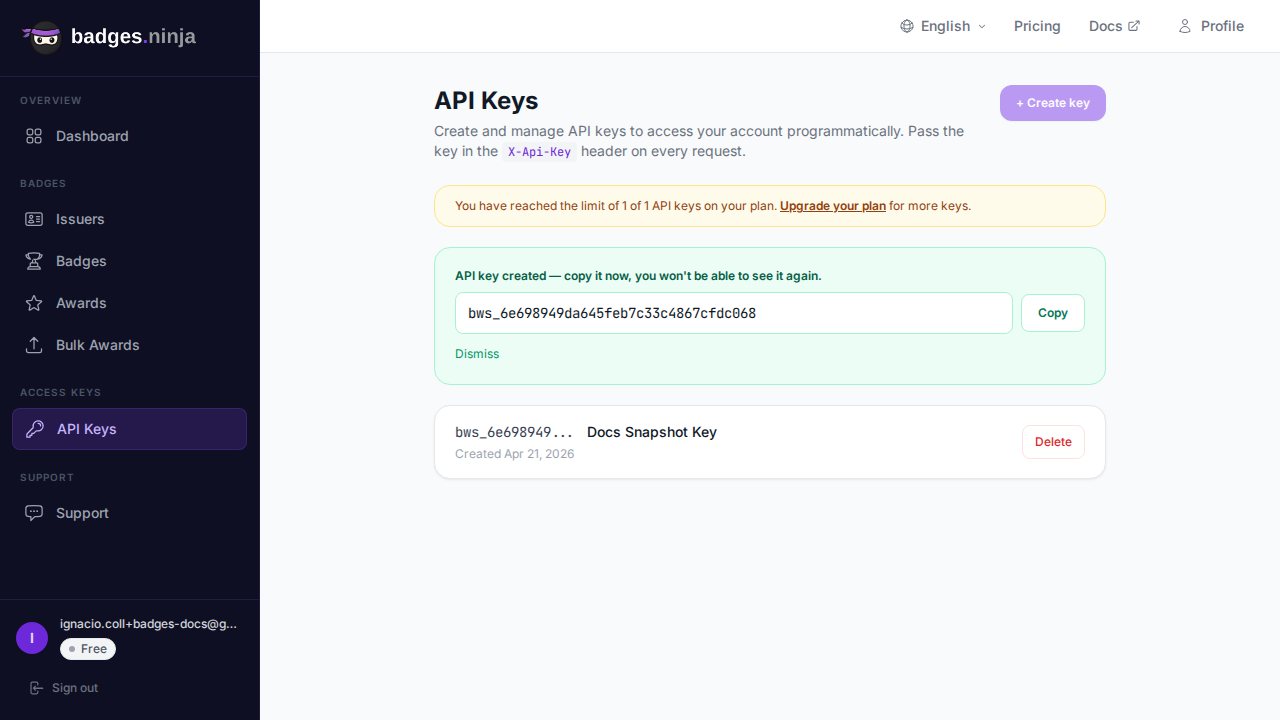
Everything above assumes someone is sitting at the dashboard clicking through the wizard. If your completions already live in a system — an LMS, a CRM, a spreadsheet automation — you can drive the same bulk-credential flow directly from the Awards API instead.
A minimal per-recipient issuance call looks like this:
curl -X POST https://api.badges.ninja/awards \
  -H "X-Api-Key: bws_1a2b3c4d5e6f7a8b9c0d1e2f3a4b5c6d" \
  -H "Content-Type: application/json" \
  -d '{
    "badgeId": "badge_9f8e7d6c5b4a",
    "recipient": {
      "name": "Maria Gonzalez",
      "email": "maria@example.com"
    },
    "issuedOn": "2026-07-01T00:00:00Z"
  }'
Or in Python, looping over rows read from the same CSV you’d otherwise upload by hand:
import csv
import requests
API_KEY = "bws_1a2b3c4d5e6f7a8b9c0d1e2f3a4b5c6d"
BADGE_ID = "badge_9f8e7d6c5b4a"
with open("recipients.csv") as f:
    for row in csv.DictReader(f):
        requests.post(
            "https://api.badges.ninja/awards",
            headers={"X-Api-Key": API_KEY},
            json={
                "badgeId": BADGE_ID,
                "recipient": {"name": row["name"], "email": row["email"]},
                "issuedOn": row.get("issued_on") or None,
            },
        )
This is worth reaching for when credential issuance is triggered by something else entirely — a course-completion webhook, a CRM stage change, a form submission — rather than a person manually exporting a CSV. We cover authentication and the full request/response shape in the API quickstart. Every credential created this way is identical to one created through the dashboard wizard: same Open Badge v2.0 assertion, same verification URL, same PDF certificate.
Dashboard Wizard vs. API: Which One Do You Actually Want?
| Dashboard Bulk Credentials | Awards API | |
|---|---|---|
| Best for | A one-time or occasional batch (cohort graduation, conference attendance) | A recurring trigger (every course completion, every purchase) |
| Setup effort | None — export a CSV, upload it | One-time integration work (webhook or script) |
| Who runs it | Program owner, no code | Whoever owns the triggering system |
| Failure handling | Preview + per-row results export | Per-request HTTP status, handled in your own retry logic |
Most teams start with the dashboard wizard because it requires nothing beyond a CSV, and only move to the API once the same batch has been run manually three or four times and the pattern is obviously worth automating.
Privacy: What Actually Gets Stored
A CSV of names and emails is personal data, and it’s worth knowing what happens to it after upload. The recipient’s email address is never stored in plaintext on the credential itself — it’s hashed with a per-credential salt as part of the Open Badge v2.0 assertion, following the spec’s hashed recipient identity format. That hash is what a verifier checks against, not the raw address. The name field is stored as entered, since it’s meant to be visible on the certificate and verification page. If a row needs correcting after issuance — a misspelled name, most commonly — you can edit or revoke the individual credential from the credentials dashboard without touching the rest of the batch.
After the Batch: Notify Recipients
Issuing the badge and telling the recipient about it are two different steps. If your CSV doesn’t already trigger an email through your own system, the dashboard’s bulk-share flow lets you multi-select the credentials you just created and send a personalized share email to all of them in one pass — see bulk-sending share emails for the full walkthrough, including how per-recipient personalization (name, badge image, verification link) gets substituted automatically.
When Bulk Credentials Is the Right Tool
Bulk issuance is the right call whenever the “batch” framing fits the real world: a cohort that finished on the same day, a conference that just ended, a training rollout hitting a compliance deadline. If instead you’re issuing one-off credentials as individual milestones are hit — a single promotion, a single project completion — the single-credential form is faster than assembling a one-row CSV.
For anything recurring — the same course running every month, a rolling onboarding pipeline — the API path above is worth setting up once. It turns “run bulk credentials manually every cohort” into “completions already issue credentials automatically,” which is the version of this workflow most program owners actually want after the second or third manual batch.
Ready to issue your first verifiable credential? Start free at badges.ninja — visual designer, public verification page, PDF certificate, Open Badge v2.0 output. No credit card required.
Don’t have a badge design yet? Start with the trusted shield course completion badge template and come back here to issue in bulk.
Related reading: Free digital badge & certificate maker → · Badges Ninja plans & pricing · Credly alternative · Certifier alternative · Cheapest Open Badges platform · Best Open Badges platforms (ranked)
About the author
Nacho Coll
Founder & Engineer at Badges Ninja
Nacho founded Badges Ninja to make issuing verifiable digital credentials as simple as a single API call — Open Badge v2.0 badges and certificates, minted, hosted, and verifiable without standing up your own issuer infrastructure. Writes about the Open Badges spec, credential verification, and running a credentialing platform serverless on AWS, from the operator side of the wire.