Google Forms to Open Badge: No-Code Certificate Issuance in 30 Minutes
Build a Google Form, hook it to Apps Script, issue an Open Badge on every submission. No paid tools, no SaaS in the middle.
 By Nacho Coll
 Nacho founded Badges Ninja to make issuing verifiable digital credentials as simple as a single API call — Open Badge v2.0 badges and certificates, minted, hosted, and verifiable without standing up your own issuer infrastructure.
Plenty of credential programs start life as a Google Form. A free training cohort, a conference session, a volunteer day: people fill in a form, and afterwards someone on the team has to remember to send each of them something to show for it. That “someone” usually ends up copying names into a spreadsheet and emailing PDFs by hand.
This tutorial removes that step. You will build a form, attach about forty lines of Google Apps Script to it, and every submission will issue a verifiable Open Badge v2.0 credential from https://badges.ninja. There is no middleware subscription to pay for and no server to host. Apps Script ships with every Google account, and the Free plan on https://badges.ninja is enough to try the whole flow.
If you have never used Apps Script, don’t worry. You will paste, save and click through a few dialogs. Budget about thirty minutes the first time, most of it spent on the badge design.
What you are building
The flow has four moving parts:
- A Google Form that collects full name and email, plus anything else you care about (course, session, cohort).
- A badge designed once in the https://badges.ninja visual designer. Its ID is what the script refers to.
- An Apps Script trigger that runs every time someone submits the form.
- An award, created by the script through the API. The recipient gets a unique verification URL, and the award can also produce a QR code and an A4 PDF certificate.
Nothing in the middle stores your data. Google holds the form responses as it always did, and the script makes one HTTPS call per submission.
Step 1: Design the badge first
Before touching the form, create the badge you intend to award. Sign in at https://badges.ninja/signup (free, no credit card), register an issuer for your organization, and open the visual designer. It has 80+ templates, shapes, icons, 11 fonts and custom image upload, with snap-to-grid so text and icons line up.
A few habits that save trouble later:
- Name the badge after the achievement, not the event. “Intro to Data Analysis: Completed” ages better than “Spring 2026 Workshop”.
- Write the criteria in plain language. This text lives on the public verification page, and it is what an employer reads when deciding whether the credential means anything.
- Keep one badge per form. If you run three sessions with three different outcomes, build three forms (or add a dropdown, covered below). Mixing outcomes in a single badge weakens it.
Once the badge is saved, you need its ID. You can list your badges through the API (GET /badges returns each badge with an id) or copy it from the badge page in the dashboard. Keep it handy for Step 4.
Step 2: Create an API key
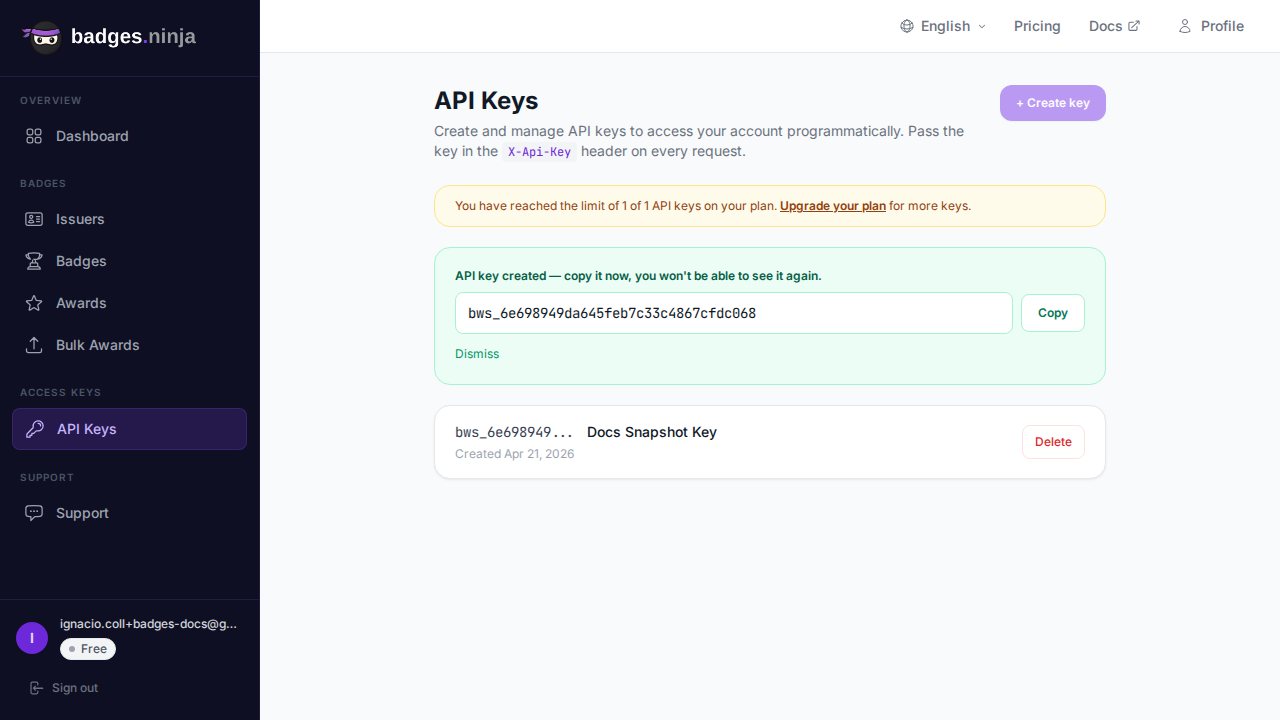
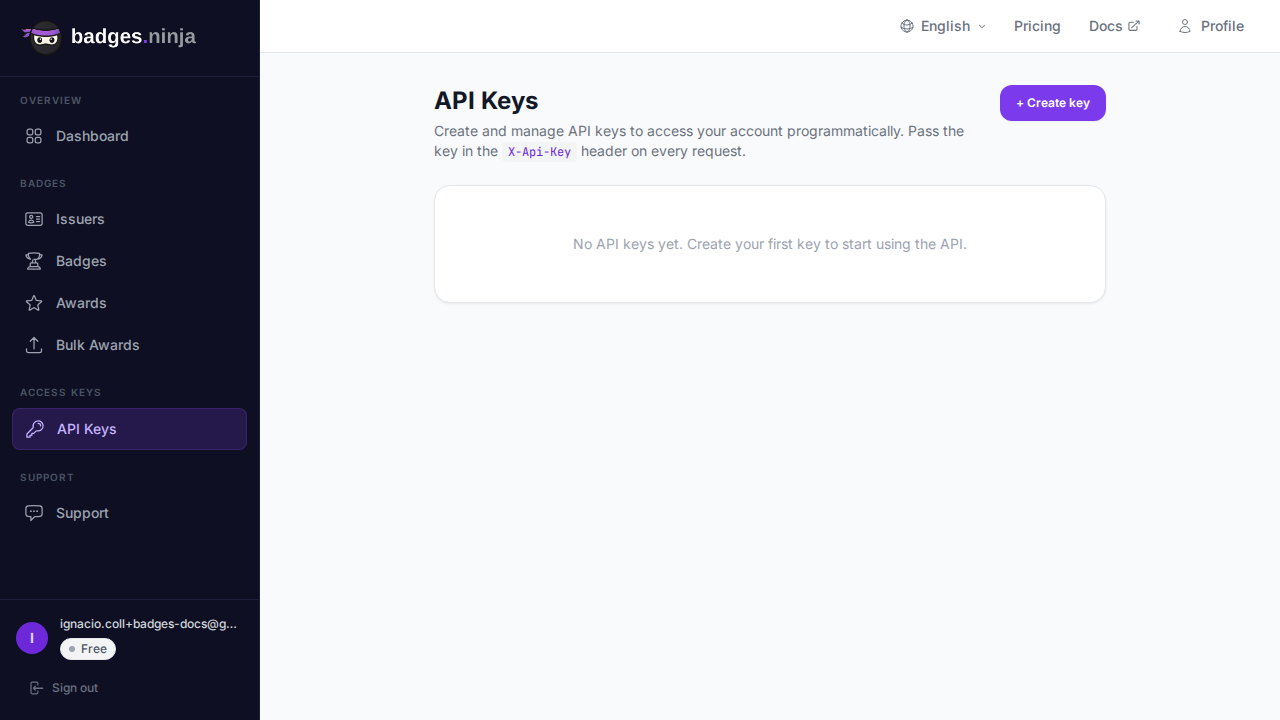
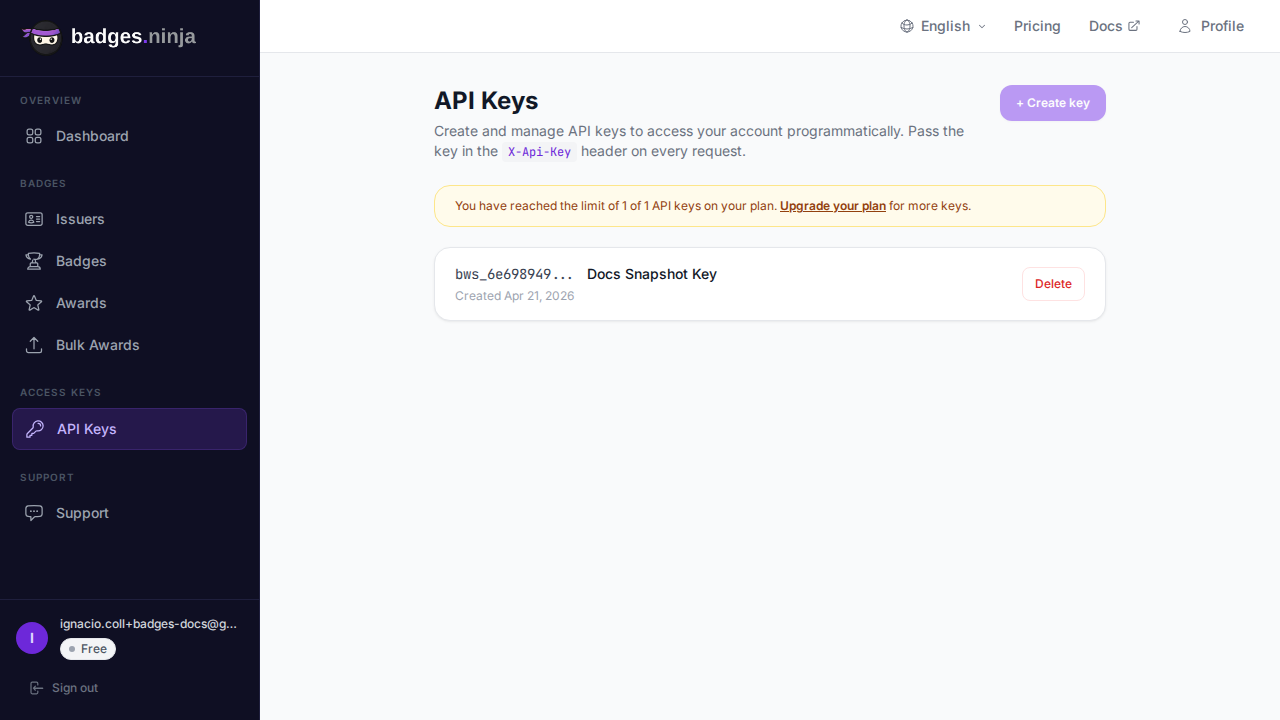
The script authenticates with an API key sent in the X-Api-Key header. In the dashboard, open the API Keys page, create a key, and copy it when it is revealed. It is shown once only.
Treat the key like a password. The docs on API keys explain how revocation works: deleting a key cuts it off immediately, so if you ever paste it somewhere you shouldn’t have, you can kill it in one click and create a new one. The Free plan includes one API key, which is exactly what this project needs.
Never paste the key into the script body. We will store it in Script Properties in Step 4, so it stays out of anything you share or copy.
Step 3: Build the form
Create a new Google Form and add these questions:
| Question | Type | Required |
|---|---|---|
| Full name | Short answer | Yes |
| Short answer (or collect email via form settings) | Yes | |
| Which session did you attend? | Dropdown (optional) | No |
Two practical notes.
Ask for the name exactly as it should appear on the credential. The name is printed on the badge, the verification page and the PDF. A form field labelled “Full name as it should appear on your certificate” saves you from correction emails later.
Use “Collect email addresses” if your audience has Google accounts. Otherwise a plain short-answer question works. Either way, the script below reads the email from the question titled “Email”, so keep that title exact, or adjust the script.
The API requires recipient.name to be at least 5 characters, so a submission with just “Al” would be rejected. In the form, add response validation to the name field (Text, Length, Minimum character count, 5) so people see the problem before they submit rather than after.
Step 4: Add the Apps Script
Open the form, click the three-dot menu, choose Script editor, and replace the default contents with the following.
const API_URL = "https://api.badges.ninja/awards";
const BADGE_ID = "your-badge-id";   // from Step 1

function onFormSubmit(e) {
  const apiKey = PropertiesService.getScriptProperties().getProperty("BADGES_API_KEY");
  const answers = {};
  e.response.getItemResponses().forEach(function (r) {
    answers[r.getItem().getTitle()] = r.getResponse();
  });
  const name = String(answers["Full name"] || "").trim();
  const email = String(answers["Email"] || e.response.getRespondentEmail() || "").trim();
  if (name.length < 5 || !email) {
    console.error("Skipped submission: name or email missing/too short", name, email);
    return;
  }
  const res = UrlFetchApp.fetch(API_URL, {
    method: "post",
    contentType: "application/json",
    headers: { "X-Api-Key": apiKey },
    muteHttpExceptions: true,
    payload: JSON.stringify({
      badgeId: BADGE_ID,
      recipient: { name: name, email: email },
      issuedOn: Date.now(),
    }),
  });
  if (res.getResponseCode() === 200) {
    const awardId = JSON.parse(res.getContentText()).awardId;
    console.log("Issued: https://badges.ninja/awards/" + awardId);
  } else {
    throw new Error("Badge API " + res.getResponseCode() + ": " + res.getContentText());
  }
}
What each part does:
e.response.getItemResponses()turns the submission into a name-to-answer lookup, keyed by question title. That is why the titles in the form must match the script.- The guard clause stops the script from calling the API with data it will reject anyway.
recipientis a nested object withnameandemail, andissuedOnis required. It accepts epoch milliseconds, soDate.now()works. See the awards API reference for the full contract.muteHttpExceptions: truelets us read the error body instead of Apps Script throwing a generic failure.- A 200 response returns
{ "awardId": "<guid>" }. The verification URL is not in the body, so the script builds it ashttps://badges.ninja/awards/<awardId>.
Now store the key. In the script editor, open Project Settings, scroll to Script Properties, and add a property named BADGES_API_KEY whose value is the key you copied (it starts with bws_ followed by 32 hex characters).
Step 5: Install the trigger
A function called onFormSubmit is not run automatically just because of its name; you have to install the trigger. Two ways:
- Through the UI: in the script editor, open Triggers (the clock icon), click Add Trigger, choose
onFormSubmit, event source From form, event type On form submit, and save. - Through code: run this once and delete it afterwards.
function installTrigger() {
  ScriptApp.newTrigger("onFormSubmit")
    .forForm(FormApp.getActiveForm())
    .onFormSubmit()
    .create();
}
Google will ask you to authorize the script the first time. It needs permission to read form responses and to make external requests. The warning screen saying the app is unverified is normal for your own scripts; it is your script, running as you.
Step 6: Test with a real submission
Open the live form link, submit it using an email address you control, and then:
- In the script editor, open Executions. You should see a completed
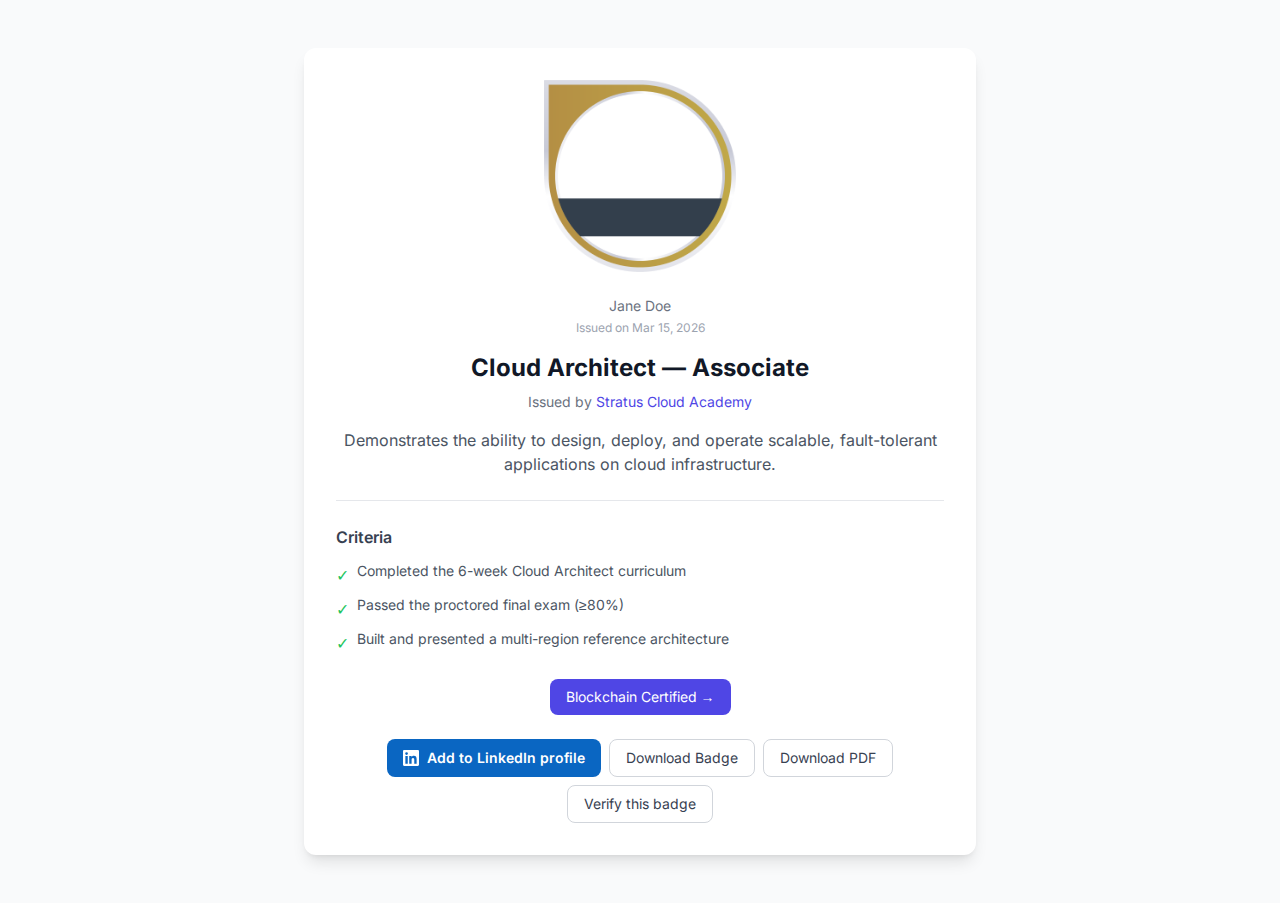
onFormSubmitrun with the log lineIssued: https://badges.ninja/awards/<awardId>. - Open that URL. The verification page is public, so you do not need to sign in to see it. It shows the issuer, the badge, the criteria and the recipient.
- Check the dashboard’s awards list. The new award should be there.
If an execution failed, the error message from the API tells you what to fix. The usual suspects:
| Status | Meaning | Fix |
|---|---|---|
| 400 | A field is missing or invalid, including a name under 5 characters | Check the form validation and question titles |
| 401 | Key is wrong or absent | Re-check the BADGES_API_KEY property |
| 402 | Out of credits or plan quota | Review your plan usage |
| 404 | Badge not found | Re-copy BADGE_ID |
The errors reference lists these in full. This is a good moment to confirm everything works on a single test submission before you share the form link with anyone.
Handling failures without losing people
The simple script above throws on a bad response, and Apps Script records that in the Executions log. For a small program, that may be all you need: check the log after the event, and fix anything that failed.
For a bigger audience, add two safeguards.
Retry transient failures. Network blips happen. Wrap the call in a short retry loop, but only retry server-side errors (5xx), never 4xx, because a 400 will fail the same way every time.
function postWithRetry(options) {
  let res;
  for (let attempt = 1; attempt <= 3; attempt++) {
    res = UrlFetchApp.fetch(API_URL, options);
    if (res.getResponseCode() < 500) return res;
    Utilities.sleep(1000 * attempt);
  }
  return res;
}
Swap the UrlFetchApp.fetch call in onFormSubmit for postWithRetry, passing the same options object.
Keep a record of what was issued. Link the form to a response spreadsheet and write the award ID back into a column next to each row. That gives you an audit trail, and it lets you spot rows with no award ID. A submission can be retried safely only if you know it has not already succeeded, because two calls with the same data create two awards. Check the column first, and skip rows that already have an ID.
Mapping different forms or answers to different badges
Two common variations, both small changes to the script.
One form, several badges. Add a dropdown (“Which session did you attend?”) and replace the single BADGE_ID with a lookup:
const BADGES_BY_SESSION = {
  "Intro workshop": "badge-id-for-intro",
  "Advanced workshop": "badge-id-for-advanced",
};
// inside onFormSubmit, after reading answers:
const badgeId = BADGES_BY_SESSION[answers["Which session did you attend?"]];
if (!badgeId) { console.error("No badge mapped for this session"); return; }
Then pass badgeId instead of BADGE_ID in the payload.
Attendance-gated issuance. A form submission only proves someone filled in a form. If the credential should mean “attended” or “passed”, you do not want to hand it out on submit. The pattern here is to have the form feed a spreadsheet, review it, and issue only for the approved rows. For a large approved list, skip the script entirely and use the dashboard’s CSV upload; our walkthrough on issuing Open Badges from a CSV covers it, with pause and resume for big batches.
A word on honesty of the credential
An automated “submit form, get badge” flow is ideal for low-stakes recognition: attending a webinar, registering for a community, completing a self-paced module with an honor-system quiz. It is a poor fit for anything where the credential asserts a verified skill. If you issue the badge to everyone who submits, the badge says “this person submitted a form”. Write the criteria text accordingly, and keep assessed credentials behind a review step.
What the recipient gets
Each award has its own verification page, which anyone can open without signing up. Recipients can reach their badges through the recipient portal at https://badges.ninja/me using a magic link (no password to create), and they can add the credential to LinkedIn with the Add to LinkedIn option. The badge data is published as Open Badge v2.0 JSON-LD, so it is portable to other platforms that read the standard. Recipient emails are stored as SHA-256 hashes, which keeps the public data free of plain-text addresses.
Limits worth knowing
- Apps Script quotas. Google caps the number of external requests a script may make per day and the runtime of each execution. Individual form submissions are nowhere near those caps, but if your form goes viral, check Google’s current quota table.
- Plan limits. The Free plan covers 2 issuers, 5 badges, 1,200 credentials per year, 2 seats and 1 API key. Starter is $9 per month and Pro is $29 per month. A cohort program with a few hundred learners fits comfortably in the free tier.
- Name quality. The script issues whatever name the person typed. If you want consistent capitalization, normalize it in the script before sending.
If you would rather skip the script and click through the same idea in a no-code automation tool, see our guide to Zapier automation for Open Badges. For a broader tour of the API beyond this one call, start with the API quickstart.
Recap
- Design the badge in the visual designer and copy its ID.
- Create an API key and store it in Script Properties.
- Build the form with a full-name question validated to at least five characters, plus an email.
- Paste the script, install the form-submit trigger, and authorize it.
- Submit a test response, open the verification URL, and then share the form.
The whole thing is a single API call per submission, and the result is a credential that anyone can verify in a browser.
Ready to issue your first verifiable credential? Start free at badges.ninja — visual designer, public verification page, PDF certificate, Open Badge v2.0 output. No credit card required.
About the author
Nacho Coll
Founder & Engineer at Badges Ninja
Nacho founded Badges Ninja to make issuing verifiable digital credentials as simple as a single API call — Open Badge v2.0 badges and certificates, minted, hosted, and verifiable without standing up your own issuer infrastructure. Writes about the Open Badges spec, credential verification, and running a credentialing platform serverless on AWS, from the operator side of the wire.