Skip to content

Sign Up & Sign In

Creating an Account

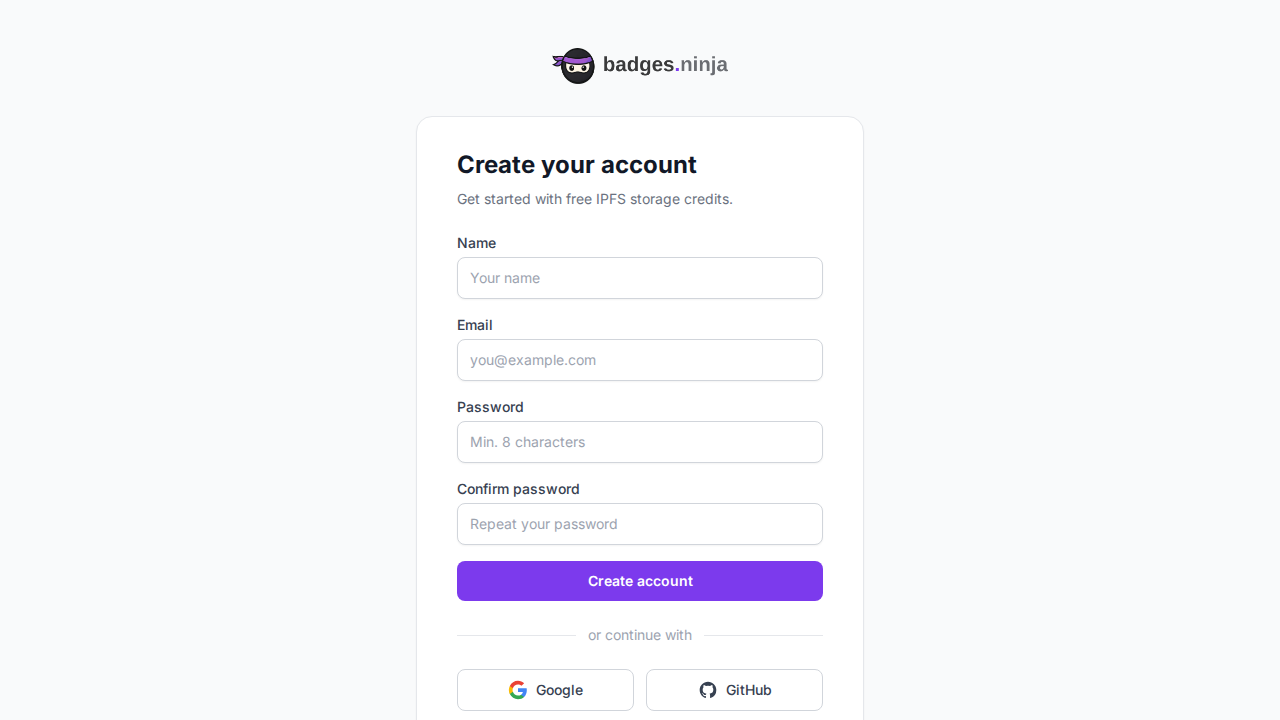
Sign up form

  1. Go to badges.ninja/signup.
  2. Enter your email address and choose a password.
    • Password must be at least 8 characters and include uppercase, lowercase, a number, and a special character.
  3. Click Sign Up.

Verifying Your Email

After signing up, a verification code is sent to your email.

  1. Check your inbox (and spam folder) for a message from hello@support.badges.ninja.
  2. Enter the 6-digit verification code on the confirmation screen.
  3. Click Confirm.

If you did not receive the code, click Resend Code to get a new one.
Signing In

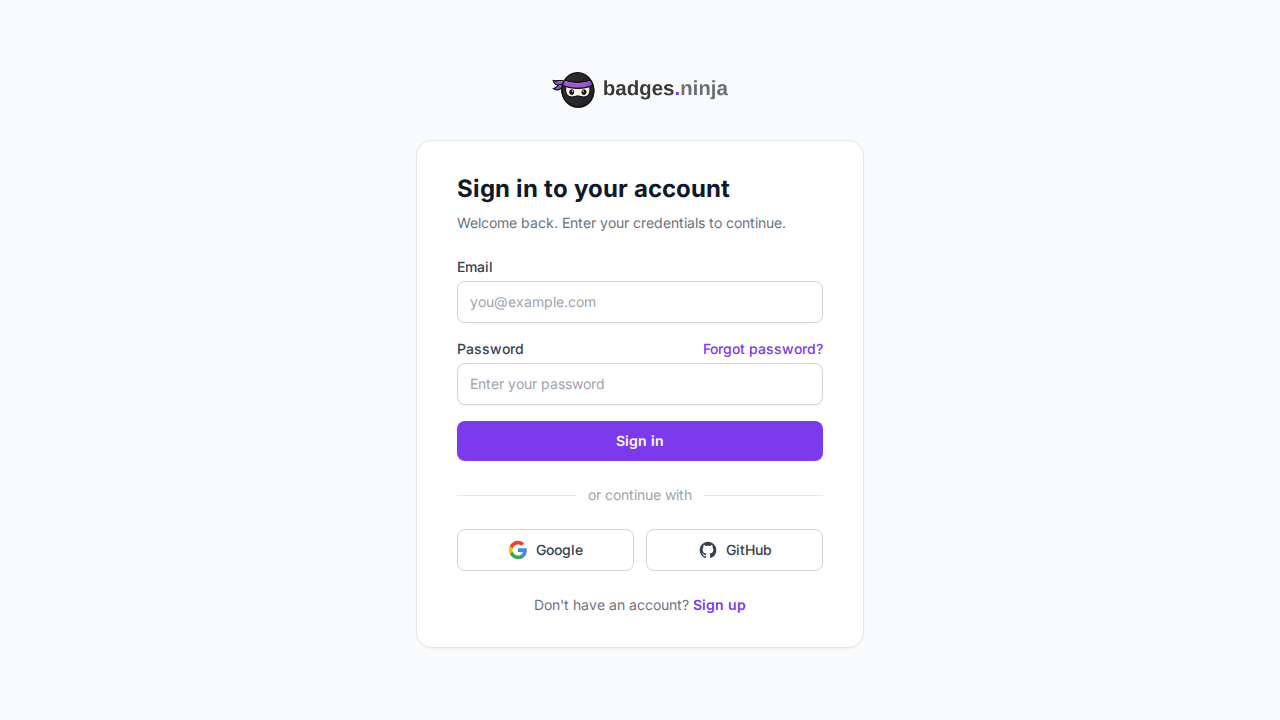
Sign in form

  1. Go to badges.ninja/signin.
  2. Enter your email and password.
  3. Click Sign In.

You will be redirected to your dashboard.

Google Sign-In

You can also sign in with your Google account:

  1. Click the Sign in with Google button on the sign-in page.
  2. Select your Google account and authorize access.
  3. You will be redirected to your dashboard.

When using Google sign-in for the first time, an account is created automatically using your Google email. No separate verification is needed.

Resetting Your Password

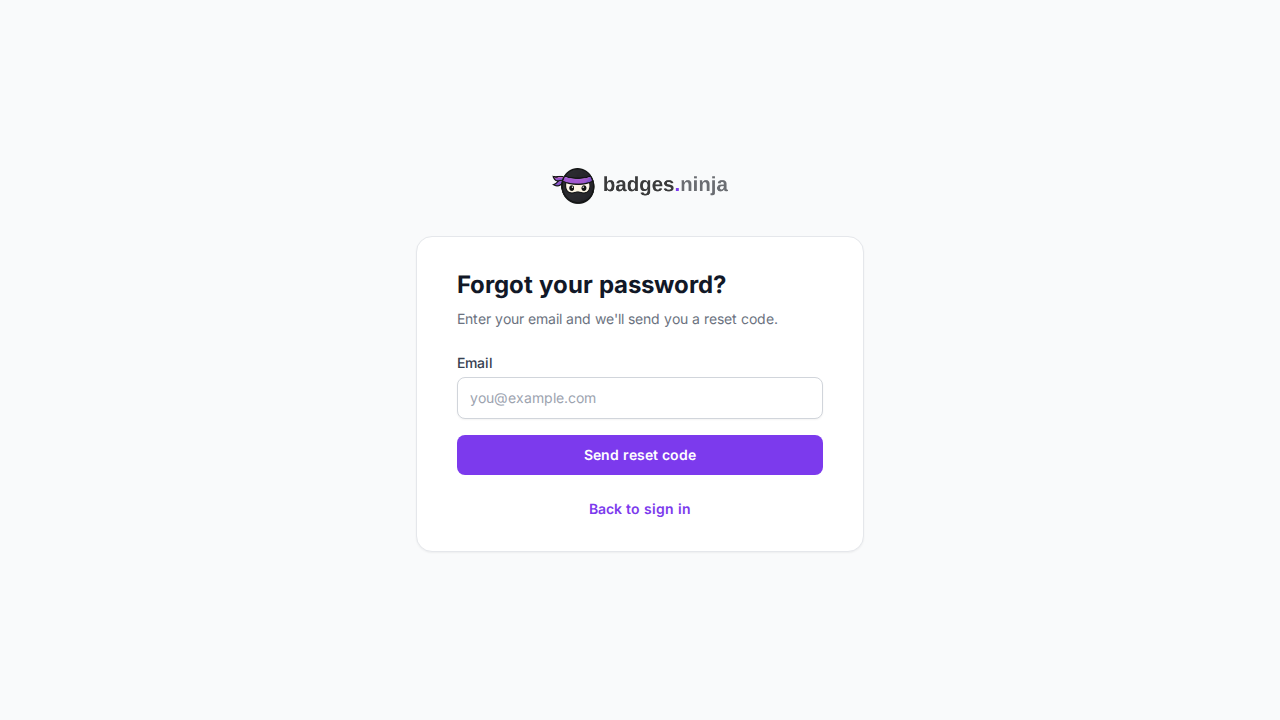
Forgot password form

If you forgot your password:

  1. Click Forgot password? on the sign-in page.
  2. Enter the email address associated with your account.
  3. Click Send Code.
  4. Check your inbox for the reset code.
  5. Enter the code and your new password.
  6. Click Reset Password.

You can now sign in with your new password.

badges.ninja Documentation