Airtable to Open Badges: Cohort Management with Automatic Issuance
Manage a training cohort in Airtable, mark "completed", and Airtable Automation fires a webhook that issues a verifiable Open Badge — no human in the loop.
 By Nacho Coll
 Nacho founded Badges Ninja to make issuing verifiable digital credentials as simple as a single API call — Open Badge v2.0 badges and certificates, minted, hosted, and verifiable without standing up your own issuer infrastructure.
If you run a training program, there is a good chance your cohort already lives in Airtable. One table holds the participants, another holds the sessions, and somewhere there is a status column that someone on your team flips to “Completed” when a learner finishes. That single click is the moment a credential should be issued. In most programs it is instead the moment someone opens a spreadsheet, copies names into another tool, and hopes they did not miss anyone.
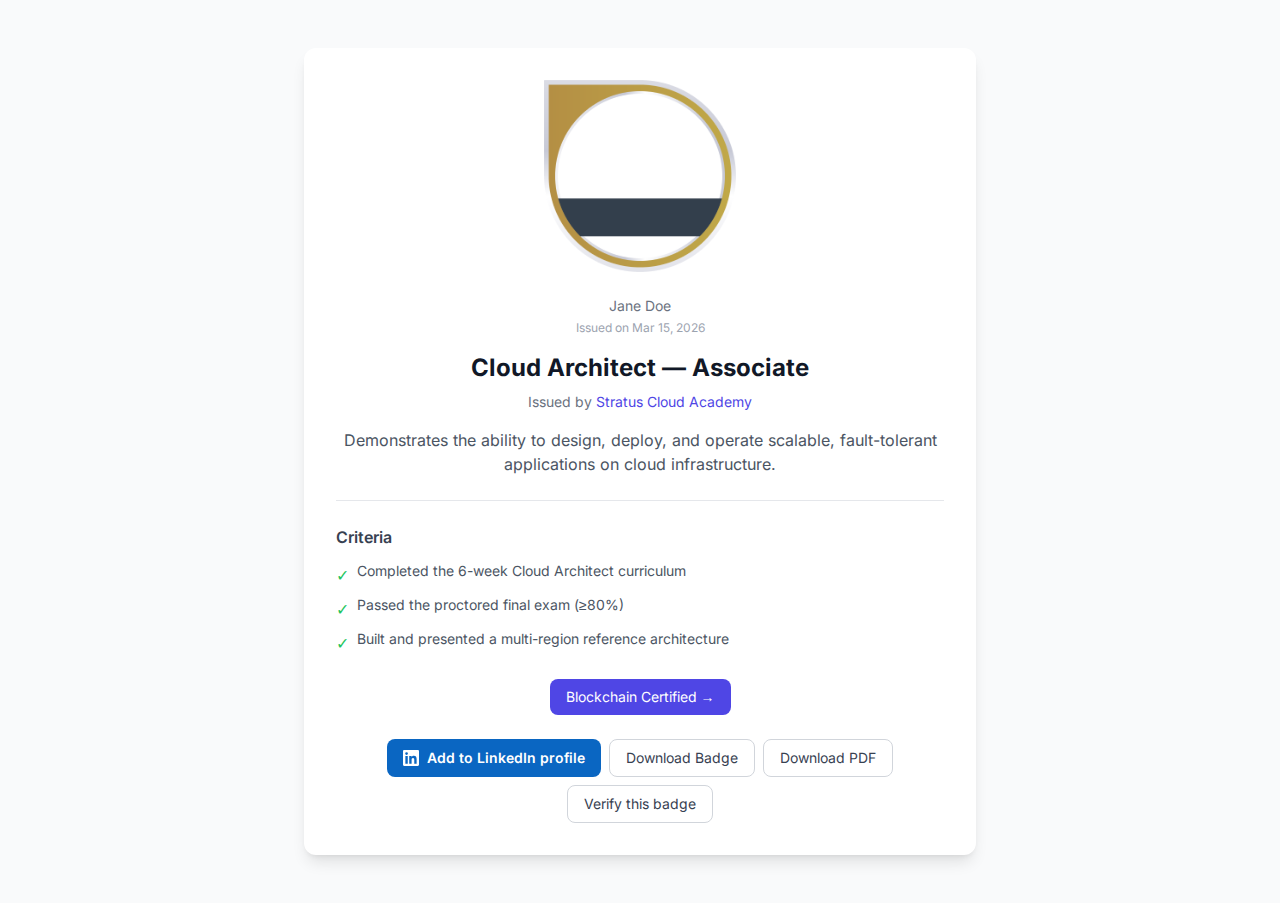
This guide shows how to close that gap. You will set up a small Airtable base, add an Airtable Automation that fires when a record’s status becomes “Completed”, and have it issue a verifiable Open Badge through the Badges Ninja awards API. The learner gets a public verification page, a QR code, and a PDF certificate. Your team does nothing except change a status.
Before the build, a quick decision about whether you need automation at all.
Automation or CSV upload: pick the lighter option
Automation is not always the right tool. If you graduate one cohort a quarter, the dashboard’s bulk upload is simpler: export a CSV from Airtable, upload it, and every row becomes an award. The CSV walkthrough covers that path, and the bulk awards guide documents pause and resume for large batches.
Choose the Airtable Automation route when:
- Learners finish at different times (rolling enrollment, self-paced tracks, weekly sessions).
- You want the badge to appear within minutes of a status change, not whenever someone remembers to run an export.
- Several coordinators update the base, and you do not want credential issuing to depend on who is on duty.
- You want the verification link written back into the same record, so your base becomes the audit trail.
If you already use Zapier or Make for other workflows, the no-code recipes post covers the same idea on those platforms. The Airtable-native approach below avoids a third-party subscription, because the automation runs inside your base.
Step 1: Prepare the badge and an API key
Do these two things in the Badges Ninja dashboard first.
- Design the badge. Use the visual designer to build it from the 80+ templates, or upload your own artwork. Note the badge ID, because the API needs it. You can list your badges with
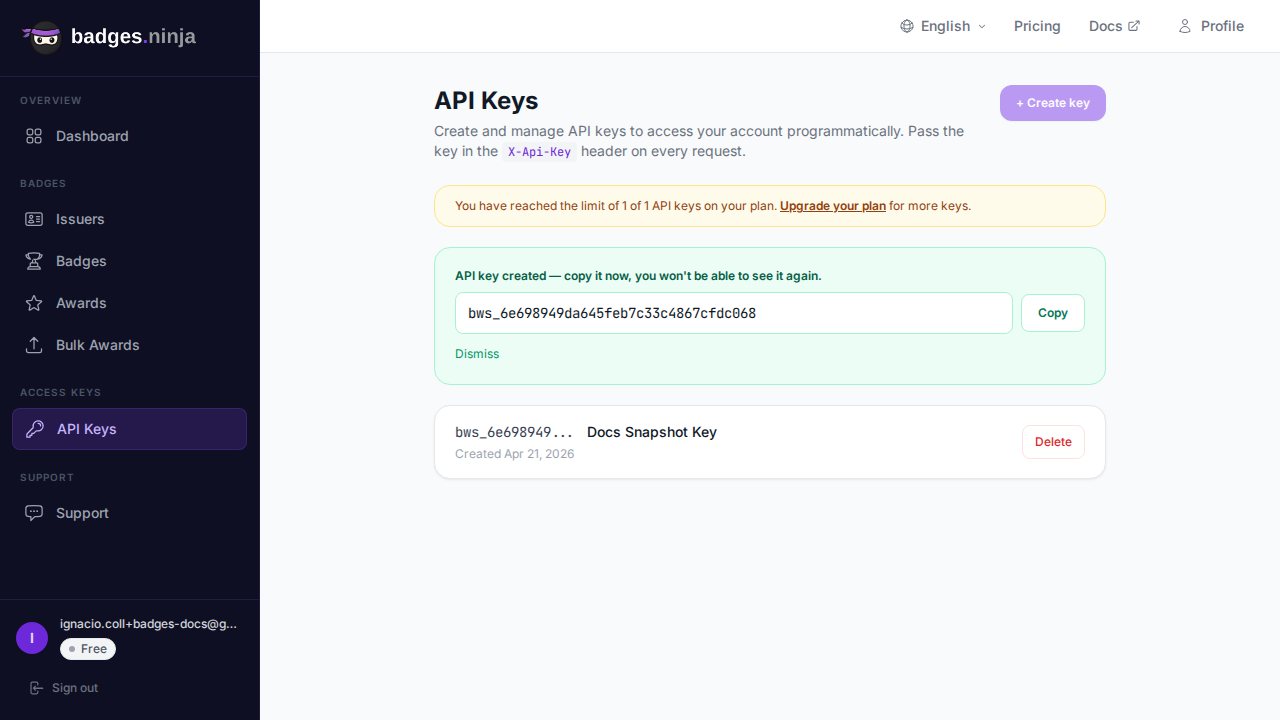
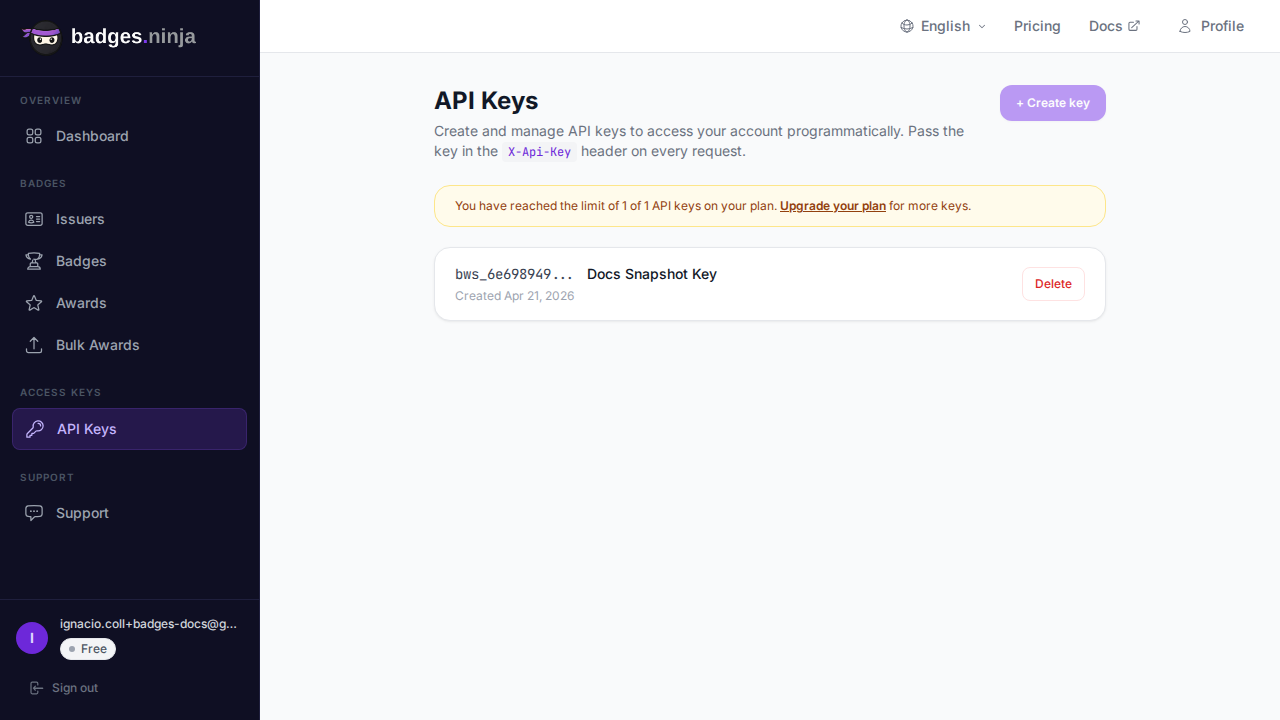
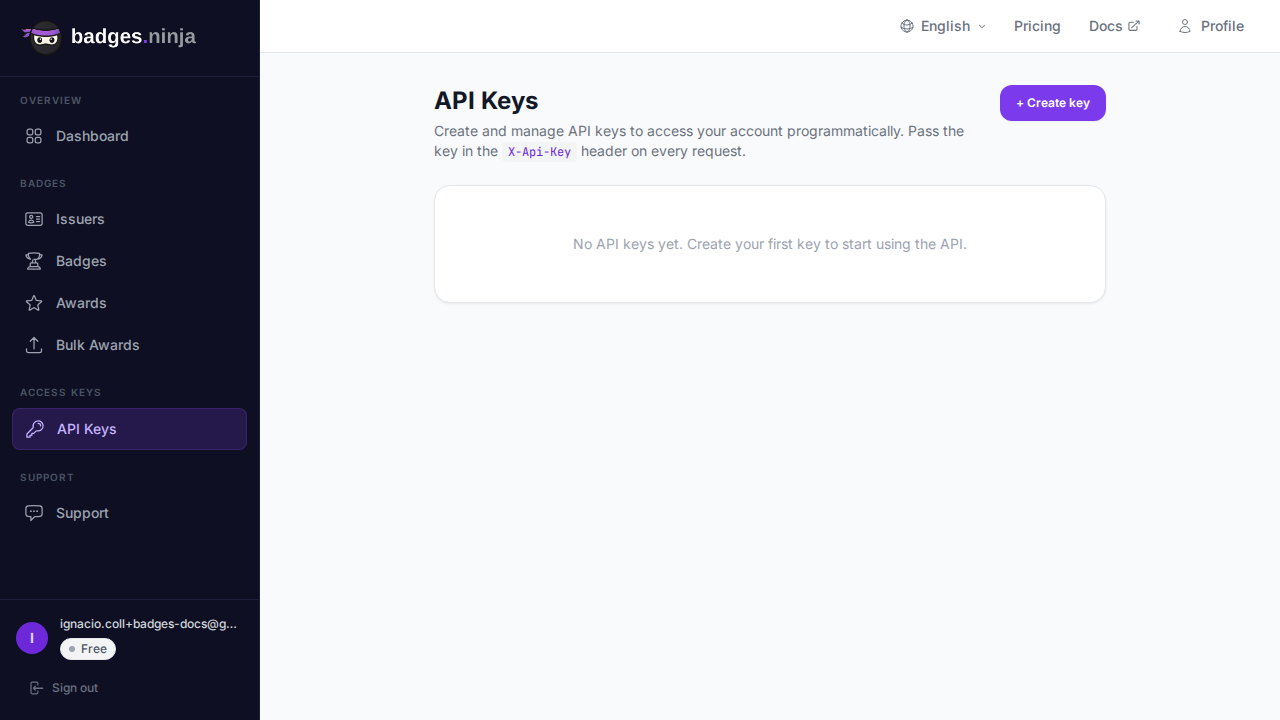
GET /badges, where each entry has anid. - Create an API key. Go to the API Keys page and create a key with a recognizable name such as “airtable-cohort-automation”. The key is shown once, so copy it straight away. Keys look like
bws_followed by 32 hex characters. The API keys guide walks through it, and revoking a key later is immediate if an automation ever misbehaves.
Treat the key like a password. In Airtable you will store it as an automation input variable rather than pasting it into a visible field in your base, and you should not put it in a column that collaborators can read.
Step 2: Structure the Airtable base
Keep the base boring. A single table called Participants is enough to start, with these fields:
| Field | Type | Purpose |
|---|---|---|
| Full name | Single line text | Becomes the recipient name on the badge |
| Recipient email address | ||
| Cohort | Linked record or single select | Lets you filter and report by cohort |
| Status | Single select | Enrolled, In progress, Completed |
| Completed on | Date | Becomes the issue date |
| Award ID | Single line text | Filled in by the automation |
| Verification URL | URL | Filled in by the automation |
| Issue error | Long text | Filled in only when the API call fails |
A few design choices matter here.
Use a real full name. The API rejects recipient names shorter than five characters, so a participant stored as “Li” or “Ana” will fail. Add a validation habit, or a formula field that flags short names, so you catch these before the learner finishes.
Make “Completed” a deliberate act. Status should be a single select, not a free-text field. Typos like “complete” or “Done” will never match your trigger.
Keep the output fields empty by default. The Award ID field is your duplicate guard. The automation will only run for records where it is blank. That one condition prevents a learner from getting two awards if someone flips the status back and forth.
Step 3: Build the automation trigger
In Airtable, open Automations and create a new automation.
- Trigger: When a record matches conditions. Select the Participants table and set the conditions to: Status is “Completed” and Award ID is empty.
- Test the trigger with a sample record, so the later steps have real field values to map.
The “matches conditions” trigger is a better fit than “when a record is updated” because it evaluates the state of the record rather than a particular edit. Combined with the empty Award ID condition, it fires once per participant and stops.
Step 4: Call the awards endpoint from a script action
Add an action of type Run script. Airtable scripts can make outbound HTTP requests with fetch, so no middleware server is required. Define these input variables on the left side of the script editor, each mapped from the trigger record:
recordId— the record IDfullName— Full nameemail— EmailcompletedOn— Completed onapiKey— your Badges Ninja API keybadgeId— the badge ID from Step 1
Then use a script like this. It follows the exact contract of the awards endpoint: a nested recipient object and a required issuedOn, with the award ID returned in the response body.
const { recordId, fullName, email, completedOn, apiKey, badgeId } = input.config();
const table = base.getTable("Participants");
// —— issue the award
const res = await fetch("https://api.badges.ninja/awards", {
  method: "POST",
  headers: { "X-Api-Key": apiKey, "Content-Type": "application/json" },
  body: JSON.stringify({
    badgeId,
    recipient: { name: fullName, email },
    issuedOn: completedOn,
  }),
});
// —— write the result back to the record
if (res.ok) {
  const { awardId } = await res.json();
  await table.updateRecordAsync(recordId, {
    "Award ID": awardId,
    "Verification URL": `https://badges.ninja/awards/${awardId}`,
    "Issue error": "",
  });
} else {
  const detail = await res.text();
  await table.updateRecordAsync(recordId, {
    "Issue error": `HTTP ${res.status}: ${detail}`,
  });
  throw new Error(`Award failed for ${email}: HTTP ${res.status}`);
}
Some notes on what this does and why.
- The response is just an
awardId. A successful call returns HTTP 200 with{ "awardId": "<guid>" }. The verification page is not included in the body, so the script builds it ashttps://badges.ninja/awards/<awardId>. Anyone can open that link without signing up. - The date format.
issuedOnaccepts epoch milliseconds or an ISO date string. If your Completed on field is a date field, Airtable passes it as an ISO-style string, which works. If you format it with a formula, keep an ISO format like2026-10-08. - Failures are written down. On a non-200 response the script stores the status and body in the Issue error field and then throws, which marks the automation run as failed. Your team can see the reason in the record itself instead of hunting through run logs.
Step 5: Personalize per recipient
Everything that varies per learner comes from field merging. The recipient name and email are the obvious ones, and the issue date follows the Completed on column. A few useful extensions:
- Different badges for different tracks. Add a Badge ID lookup field on a linked Tracks table, so the “Data Foundations” cohort issues one badge and the “Advanced Analytics” cohort issues another. Map that lookup to the
badgeIdinput instead of hard-coding it. - Expiry for time-limited credentials. The award request accepts an optional
expiresvalue in the same formats asissuedOn. For a yearly compliance refresher, compute it with a formula field and pass it through. - Fixing names before they ship. Because the name on the badge comes straight from the base, tidy casing and spelling in Airtable once and every credential benefits.
The badge design itself, including the issuer branding, lives in Badges Ninja. Airtable only decides who gets it and when.
Step 6: Confirmation email and the retry story
Once the award exists, the learner needs to hear about it. Add a second action after the script: Send email. Use the participant’s Email field as the recipient and merge the Verification URL field into the body:
Congratulations on completing the cohort. Your verifiable credential is ready: add it to your LinkedIn profile or share the link directly.
Recipients can also sign in to the recipient portal at https://badges.ninja/me with a magic link and no password, which is where they collect their badges in one place. Mention it in your email so learners know where to find everything later. For the LinkedIn side, see how the Add to LinkedIn flow works.
Because the email step runs after the script, it only fires when the script succeeded. A thrown error stops the automation before the email goes out, so nobody receives a congratulations message without a credential behind it.
Handling failures without double-issuing
The awards endpoint does not take an idempotency key, so retries need a little care. The pattern above handles it naturally:
- A failed run leaves Award ID empty and fills Issue error.
- Fix the cause. The common ones are a name under five characters (HTTP 400), a mistyped badge ID (404), an invalid or revoked key (401), or an exhausted plan allowance (402).
- Clear the Issue error field, or re-select the Status, and the record matches the trigger again. Airtable fires the automation once more.
- A successful run fills Award ID, so the record can never match the trigger a second time.
You can build a view called Needs attention that filters for a non-empty Issue error. Someone checks it once a day, and the whole loop stays visible inside the base. The error reference lists each status code and what causes it.
If you want to be stricter, add a final condition on the trigger: Issue error is empty. Failed records then stay quiet until a person clears the error on purpose, which prevents a bad API key from producing a burst of failed runs.
Airtable Automation versus Zapier
Both work. The right pick depends on what you already pay for and how much you want to maintain.
| Airtable Automation | Zapier or Make | |
|---|---|---|
| Extra subscription | No, runs inside your base | Yes, per task or per operation pricing |
| Where the logic lives | Next to your data | In a separate tool |
| Write-back to records | Native, one script | A separate step with field mapping |
| Multi-app workflows | Awkward beyond Airtable | Strong, hundreds of connectors |
| Skill needed | A short script | Point and click |
| Best for | A cohort tracker that is the source of truth | Stitching together forms, payments, and mailing lists |
A good rule of thumb: if Airtable is where the “completed” decision is made, keep the automation in Airtable. If the trigger happens elsewhere, such as a Typeform submission or a Stripe purchase, use the Zapier, Make, and n8n recipes and, if you like, have those write back to Airtable as a final step.
Check your work before the real cohort
Run a dry run with a throwaway record before you flip the switch on real learners.
- Create a test participant with your own email address and a full name of at least five characters.
- Set Status to “Completed”.
- Watch the automation run history. Within a few seconds the Award ID and Verification URL fields should fill in.
- Open the Verification URL in a private window. You should see the public verification page with the badge, issuer, and recipient details.
- Break something on purpose, such as a one-letter name, and confirm the Issue error field fills and the confirmation email does not send.
Also check your plan before launch. The Free plan includes 1,200 credentials per year, Starter is $9 per month, and Pro is $29 per month, so size the plan to the number of learners you expect to complete in a year. Running out partway through a cohort shows up as an HTTP 402 in your Issue error field, which is at least easy to spot.
Keeping the automation healthy
A few habits keep this running for years without attention:
- Rotate the key on a schedule. Create a new key, update the automation input, then delete the old one.
- Limit who can edit the automation. Anyone who can edit it can read the key input. Use a base permission level that restricts this to the program owner.
- Lock down the Status field. Restrict who may set “Completed”, since that is now the action that creates a credential.
- Review the Needs attention view weekly. It takes two minutes and catches the odd bad record early.
What you end up with
A cohort base where completing a learner is a single status change, and the credential follows on its own: a unique verification URL, an Open Badge v2.0 record anyone can check without an account, a QR code, and a PDF certificate. The verification link sits in the same row as the learner, ready for reporting, support questions, or an audit.
Ready to issue your first verifiable credential? Start free at badges.ninja — visual designer, public verification page, PDF certificate, Open Badge v2.0 output. No credit card required.
About the author
Nacho Coll
Founder & Engineer at Badges Ninja
Nacho founded Badges Ninja to make issuing verifiable digital credentials as simple as a single API call — Open Badge v2.0 badges and certificates, minted, hosted, and verifiable without standing up your own issuer infrastructure. Writes about the Open Badges spec, credential verification, and running a credentialing platform serverless on AWS, from the operator side of the wire.