Issuing Open Badges via the Badges Ninja REST API: Quickstart
Authenticate, create an issuer, design or upload a badge, award it to a recipient — all via REST. JavaScript and Python examples included.
 By Nacho Coll
 Nacho founded Badges Ninja to make issuing verifiable digital credentials as simple as a single API call — Open Badge v2.0 badges and certificates, minted, hosted, and verifiable without standing up your own issuer infrastructure.
Most credential programs never need an API. If you run a course with a few hundred graduates a year, the dashboard does everything: you design a badge in the visual designer, upload a CSV, and every recipient gets a verification page and a PDF certificate. If that is your situation, start with how to issue Open Badges from a CSV and come back later.
The API earns its place when credentials should be issued by another system: your learning platform marks a course complete, your registration tool closes an event, your HR system records a finished compliance module. In those cases nobody wants to export a spreadsheet at the end of every week. A single HTTP call at the moment of completion is simpler, and the recipient gets their badge while the achievement is still fresh.
This quickstart walks through the whole path in four calls: get a key, create an issuer, create a badge, award it. Then we look at how to hand the verification link to the recipient and check the result. Every request shape below comes from the deployed handlers, so you can paste it and run it.
What you need before you start
- A free account at badges.ninja. The Free plan is enough for this tutorial: it includes 2 issuers, 5 badges, 2 seats and 1 API key.
- One API key, created from the dashboard.
- A PNG or JPG for the badge image, or a badge you designed in the visual designer.
The base URL for everything is https://api.badges.ninja.
Step 1: Create an API key
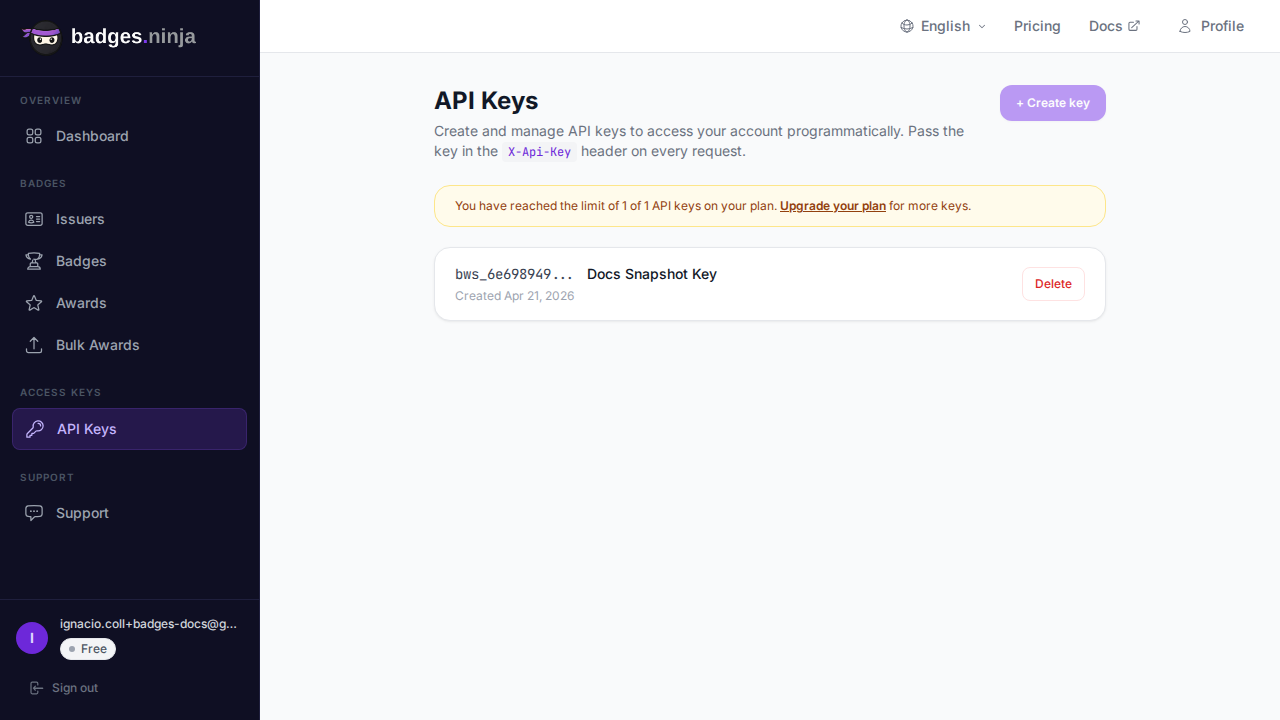
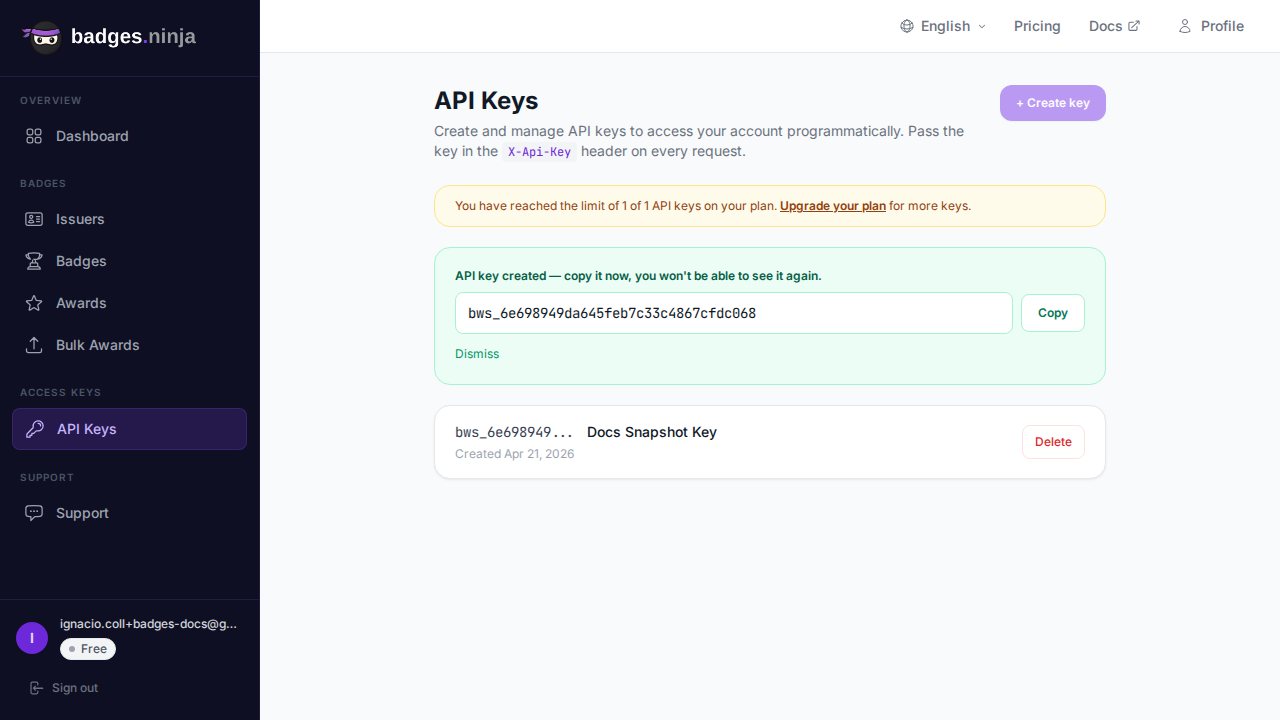
Sign in, open API Keys in the sidebar, and click Create API Key. Give it a name that says where it will live, such as “LMS integration”, so you can tell keys apart when you rotate them later.
The key is shown exactly once. Copy it into your secrets manager or an environment variable right away. Keys look like bws_ followed by 32 hex characters, and you send them in an X-Api-Key header on every request. Revoking a key from the same screen takes effect immediately.
A few habits that save trouble later:
- Never put the key in front-end code or a public repository. Call the API from a server, a serverless function, or an automation tool.
- Use one key per integration. If one leaks, you revoke one integration instead of all of them.
- The dashboard also accepts your signed-in session (a Cognito JWT sent as
Authorization: Bearer), but for scripts and integrations the API key is the right tool.
All examples below read the key from an environment variable named BADGES_API_KEY.
Step 2: Create an issuer
An issuer is the organization that stands behind the badge. It appears on every verification page and inside the Open Badge v2.0 data, so use the name people actually know.
curl -X POST https://api.badges.ninja/issuers \
  -H "X-Api-Key: $BADGES_API_KEY" \
  -H "Content-Type: application/json" \
  -d '{"name":"Acme Academy","url":"https://acme.example.com","email":"badges@acme.example.com"}'
The required fields are name (at least 3 characters), url (a valid http or https address) and email. Optional fields are logo (a base64-encoded image) and linkedinOrganizationId, which turns on the Add to LinkedIn Profile button on your public credential pages.
The response contains the issuer identifier:
{
  "issuerId": "https://api.badges.ninja/certify-badge/issuer/a1b2c3d4-e5f6-7890-abcd-ef1234567890"
}
Keep that value exactly as returned. It is the input to the next step.
Issuer verification
Badges can only be created under a verified issuer. Verification works like this:
- If the issuer email matches the email on your account, the issuer is verified automatically. This is the fastest path for a first test.
- If the email is different, a verification email with a code goes to that address. You confirm the code in the dashboard (or through the issuers API) before creating badges.
So for this tutorial, use the same email you signed up with.
Step 3: Create a badge
A badge is the reusable template: name, description, criteria and image. Each award you issue later points back to it.
The request is plain JSON. The image goes in as a base64 string, so there is no multipart upload to fight with. A data URL prefix such as data:image/png;base64, is accepted and stripped.
JavaScript (Node 18 or later):
import { readFileSync } from "node:fs";
const API_KEY = process.env.BADGES_API_KEY;
const image = readFileSync("./badge.png").toString("base64");
const res = await fetch("https://api.badges.ninja/badges", {
  method: "POST",
  headers: { "X-Api-Key": API_KEY, "Content-Type": "application/json" },
  body: JSON.stringify({
    name: "JavaScript Fundamentals",
    description: "Demonstrates proficiency in core JavaScript concepts",
    criteria: "Completed the JavaScript Fundamentals course with a score of 80% or higher",
    image,
    issuerId: "https://api.badges.ninja/certify-badge/issuer/a1b2c3d4-e5f6-7890-abcd-ef1234567890",
  }),
});
const { badgeId } = await res.json();
console.log(badgeId);
Python:
import base64, os, requests
API_KEY = os.environ["BADGES_API_KEY"]
with open("badge.png", "rb") as f:
    image = base64.b64encode(f.read()).decode()
res = requests.post(
    "https://api.badges.ninja/badges",
    headers={"X-Api-Key": API_KEY},
    json={
        "name": "JavaScript Fundamentals",
        "description": "Demonstrates proficiency in core JavaScript concepts",
        "criteria": "Completed the JavaScript Fundamentals course with a score of 80% or higher",
        "image": image,
        "issuerId": "https://api.badges.ninja/certify-badge/issuer/a1b2c3d4-e5f6-7890-abcd-ef1234567890",
    },
)
badge_id = res.json()["badgeId"]
print(badge_id)
All five fields (name, description, criteria, image, issuerId) are required. Two optional ones are worth knowing: shareText, the default text recipients see when they share on social networks (it supports {{badge_name}}, {{issuer_name}} and {{award_url}} placeholders), and designJson, which stores a visual-designer document so the badge can be edited layer by layer later.
A success returns HTTP 200 with { "badgeId": "<id>" }. The image is stored permanently, and the badge is now an Open Badge v2.0 BadgeClass that anyone can fetch.
Should you create badges in code at all?
Usually not. Badge design is a creative task, and the visual designer (80+ templates, shapes, icons, 11 fonts and custom uploads) is a much better place for it than a script. A common pattern is to design each badge once in the dashboard, then have your integration only issue awards against it. You can list your badges with GET /badges and copy the id of the one you want.
Create badges through the API when you generate them programmatically, for example one per course in a catalog of hundreds, or when you are seeding a test environment.
Step 4: Award the badge
This is the call your integration will make thousands of times. Send the badge, the recipient, and the date.
curl:
curl -X POST https://api.badges.ninja/awards \
  -H "X-Api-Key: $BADGES_API_KEY" \
  -H "Content-Type: application/json" \
  -d '{"badgeId":"<badge-id>","recipient":{"name":"Jane Smith","email":"jane@example.com"},"issuedOn":"2026-09-28"}'
JavaScript:
const res = await fetch("https://api.badges.ninja/awards", {
  method: "POST",
  headers: { "X-Api-Key": API_KEY, "Content-Type": "application/json" },
  body: JSON.stringify({
    badgeId,
    recipient: { name: "Jane Smith", email: "jane@example.com" },
    issuedOn: Date.now(),
  }),
});
const { awardId } = await res.json();
Python:
import time, requests
res = requests.post(
    "https://api.badges.ninja/awards",
    headers={"X-Api-Key": API_KEY},
    json={
        "badgeId": badge_id,
        "recipient": {"name": "Jane Smith", "email": "jane@example.com"},
        "issuedOn": int(time.time() * 1000),
    },
)
award_id = res.json()["awardId"]
The rules that trip people up:
recipientis a nested object withnameandemail. Flat fields such asrecipientEmailare rejected.recipient.namemust be at least 5 characters.issuedOnis required. Send epoch milliseconds or an ISO date string like2026-09-28.expiresis optional and takes the same formats.
A success is HTTP 200 with a body containing the awardId. The recipient email is stored as a SHA-256 hash in the Open Badge data, so the public JSON never exposes it.
Step 5: Find the verification page and the Open Badge JSON
The award response gives you an identifier, not a ready-made link. The identifier ends in a GUID, and the public pages are built from that GUID:
- Human-readable verification page:
https://badges.ninja/awards/<awardId> - Open Badge v2.0 JSON-LD:
https://api.badges.ninja/certify-badge/award/<awardId>
If your awardId comes back as a full URL, use the last path segment as the GUID.
Both are public. Anyone with the link can verify the credential without creating an account, which is the point: an employer or admissions officer should be able to check a badge in ten seconds.
Fetch the JSON to see what the world sees:
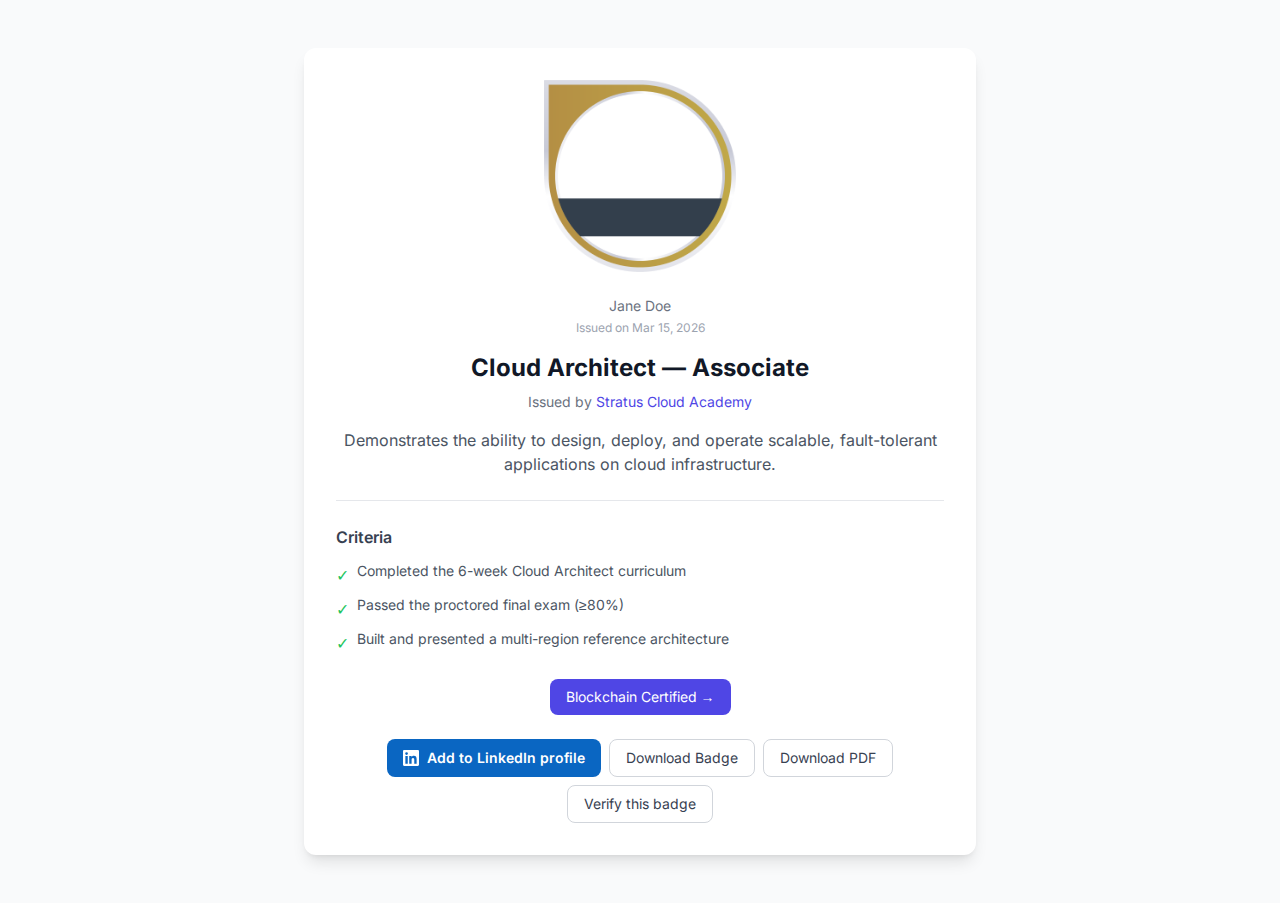
curl https://api.badges.ninja/certify-badge/award/<awardId>You get an Open Badge v2.0 Assertion: the badge it references, the hashed recipient identity, the issue date, and a verification block pointing back to the hosted assertion. Because it is standard Open Badges data, any tool that understands the format can read it. That portability is the reason to choose Open Badges over a proprietary PDF; Open Badges vs PDF certificates goes deeper on the trade-off.
How recipients receive the credential
Creating an award is separate from telling the recipient about it. Recipients can open their credentials through the recipient portal at badges.ninja/me, which uses magic-link sign-in with no password, and they can publish a public profile at badges.ninja/u/<handle>. From the verification page they can add the badge to LinkedIn, download the PDF certificate, or share the link.
For the first few tests, send yourself an award with your own email address and walk through the recipient experience. It is the fastest way to notice things like a badge description that reads awkwardly.
Error handling that does not hurt
The API uses ordinary HTTP status codes. The ones you will meet:
| Status | Meaning | What to do |
|---|---|---|
| 200 | Success | Read the JSON body |
| 400 | A field is missing or invalid, including a recipient name under 5 characters | Fix the payload; retrying the same request will fail again |
| 401 | Missing or wrong API key | Check the X-Api-Key header and that the key was not revoked |
| 402 | Out of credits or plan quota | Upgrade the plan or wait for the next quota period |
| 404 | The badge was not found | Check the badgeId you passed |
Two practical tips. First, treat 400 as a data problem and log the response body, since it names the failing field. Second, make your integration idempotent on your side: store the awardId next to the completion record in your own database, and check for it before calling the API again. That way a retried webhook or a re-run job never issues the same person two credentials.
Putting it together in a real integration
A typical wiring looks like this:
- Design badges in the dashboard, one per course or milestone, and note each badge ID.
- Store a mapping in your system from course to badge ID.
- When a learner completes a course, your server calls
POST /awardswith their name, email and the completion date. - Save the returned
awardIdagainst the completion record. - Show the verification link inside your own product, so the learner sees it without leaving.
If you would rather not write code, the same call works from any automation tool that can send an HTTP request with a JSON body and a custom header. Point it at https://api.badges.ninja/awards and map your form or spreadsheet fields onto badgeId, recipient.name, recipient.email and issuedOn.
Plans and limits worth knowing
The API is available on every plan; you do not pay extra to unlock it. The Free plan ($0) covers 2 issuers, 5 badges, 2 seats, 1 API key and 1,200 credentials per year. Starter is $9 per month and Pro is $29 per month, with higher limits. Check the pricing page for the current numbers before you size a rollout. If you are comparing what other platforms charge for API access, Credly alternative lays the costs out side by side.
Where to go next
- The full endpoint reference lives in the API documentation, which is available in 40 languages.
- For authentication details and key handling, see the authentication guide.
- For error codes in depth, see the errors reference.
- When you outgrow one call at a time, use bulk awards in the dashboard: upload a CSV, and pause or resume the run if you need to.
The first successful award is the hard part. After that, the rest is wiring the same call into the places where achievements already get recorded.
Ready to issue your first verifiable credential? Start free at badges.ninja — visual designer, public verification page, PDF certificate, Open Badge v2.0 output. No credit card required.
Related reading: Free digital badge & certificate maker → · Badges Ninja plans & pricing · Credly alternative · Certifier alternative · Cheapest Open Badges platform · Best Open Badges platforms (ranked)
About the author
Nacho Coll
Founder & Engineer at Badges Ninja
Nacho founded Badges Ninja to make issuing verifiable digital credentials as simple as a single API call — Open Badge v2.0 badges and certificates, minted, hosted, and verifiable without standing up your own issuer infrastructure. Writes about the Open Badges spec, credential verification, and running a credentialing platform serverless on AWS, from the operator side of the wire.