
Designing Your First Verifiable Digital Certificate (No Designer Needed)
Walkthrough of the Badges Ninja visual designer: pick a shape template, recolor, add issuer logo, drop in a ribbon. End with a verifiable, shareable digital certificate.
 By Nacho Coll
 Nacho founded Badges Ninja to make issuing verifiable digital credentials as simple as a single API call — Open Badge v2.0 badges and certificates, minted, hosted, and verifiable without standing up your own issuer infrastructure.
Most people put off issuing their first credential for one reason: they think they need a designer. They picture hours in Canva or Illustrator, exporting a flat PNG, then bolting on some kind of verification later as an afterthought — usually a spreadsheet nobody checks. That’s backwards. The credential should be verifiable from the moment it exists, and the design should take you fifteen minutes, not an afternoon.
This is a walkthrough of building a real, verifiable digital certificate in the badges.ninja visual designer — from blank canvas to a shareable, Open Badge v2.0-compliant credential your recipients can actually verify. No design background required.
Why “just make a PDF” stops working
A PDF certificate looks fine in isolation. The trouble starts the moment someone asks “is this real?” A PDF has no built-in way to answer that. Anyone with basic editing skills can change a name, a date, or a grade, and there’s no source of truth to check it against. If you’ve ever had to field an email from an employer trying to confirm a certificate is genuine, you already know the cost of that gap.
A verifiable credential fixes this by pairing the visual artifact (the badge or certificate image) with a permanent, publicly checkable record — a unique verification URL and an Open Badge v2.0 BadgeClass behind it. The design work and the verification work happen in the same flow, not as two separate projects.
Step 1: Start from a shape template, not a blank canvas
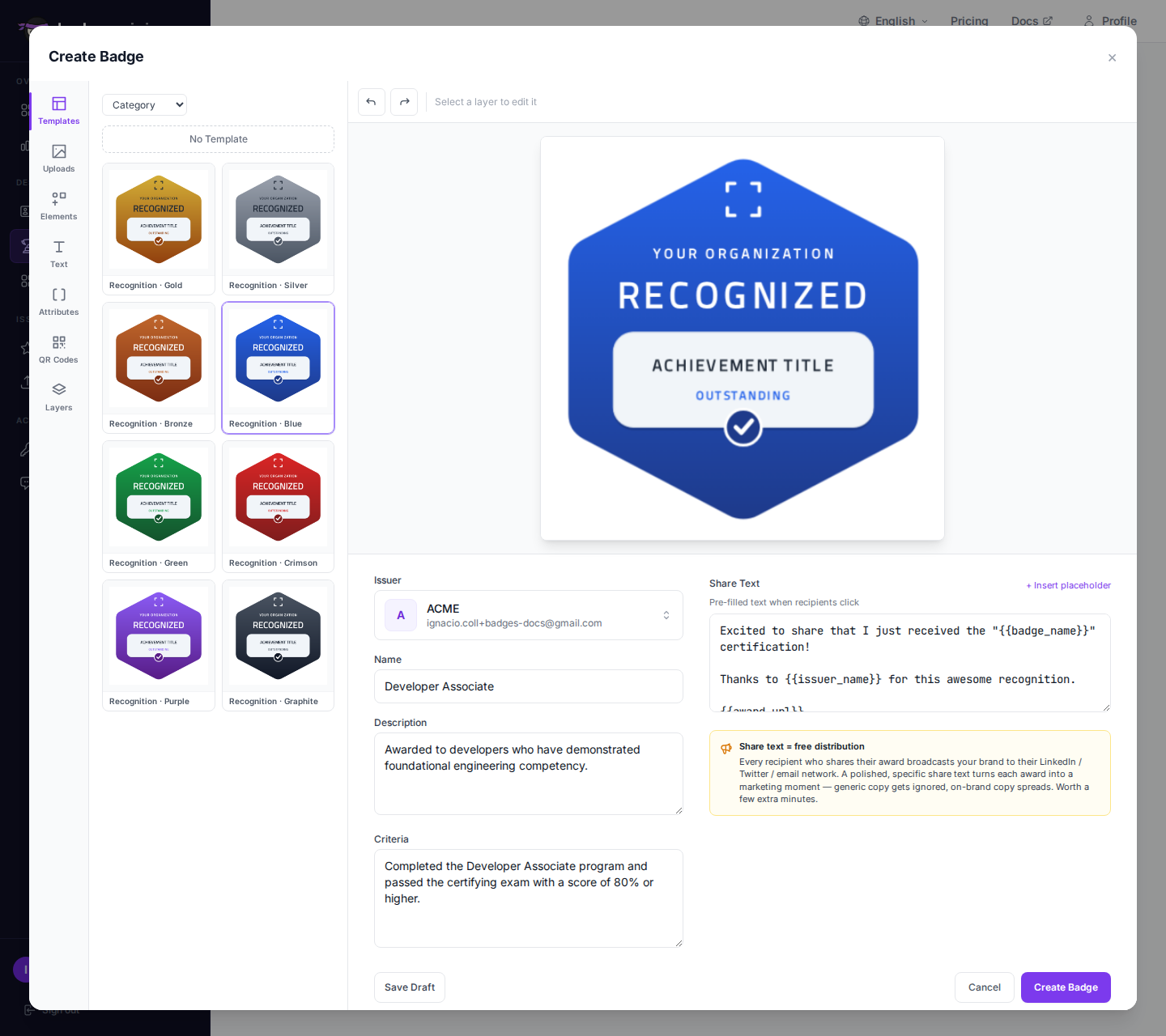
Open the designer from your dashboard and you’ll land on the template picker rather than an empty canvas. That’s deliberate — starting from one of the 80+ templates (badge shapes: shields, hexagons, sunbursts, rings, seals; certificate layouts: landscape, portrait, formal border) gets you to something presentable in one click, and every element on it is still fully editable afterward.
Pick a shape that matches the tone of what you’re issuing. Formal or licensure-adjacent credentials (compliance training, CE credits, certifications) tend to read better as a shield or a ringed seal. Course completions and workshops often work well as a hexagon or a rounded badge. There’s no wrong answer — you can always swap the base shape later without losing your text or logo placement.
The editor itself is a three-column layout: a left rail for switching between panels, the active panel in the middle, and your live canvas on the right. The badge details form (name, description, criteria) sits directly underneath the canvas, so you’re never toggling between a “design mode” and a “metadata mode” — they’re the same screen. That matters in practice: you’ll bounce between adjusting the visual and refining the wording several times before you’re happy with either, and having both on one screen means neither gets neglected.
Step 2: Recolor to match your brand
Every template ships with a default color palette, but the whole point is that it’s yours to override. Select any shape or background element and the contextual toolbar gives you direct color control — swap in your organization’s brand colors, or pick from one of the built-in palettes if you’d rather not eyeball a hex code.
This matters more than it sounds like. A badge in your organization’s actual colors reads as an official credential from your program. A badge in generic template-blue reads as something a recipient downloaded from a random site — and that perception directly affects whether they bother sharing it.
Step 3: Build the composition from the Elements panel
The Elements panel is where the actual design work happens: lines, shapes, icons, ribbons, base badge bodies, and pre-designed background shapes you can drop straight onto the canvas.
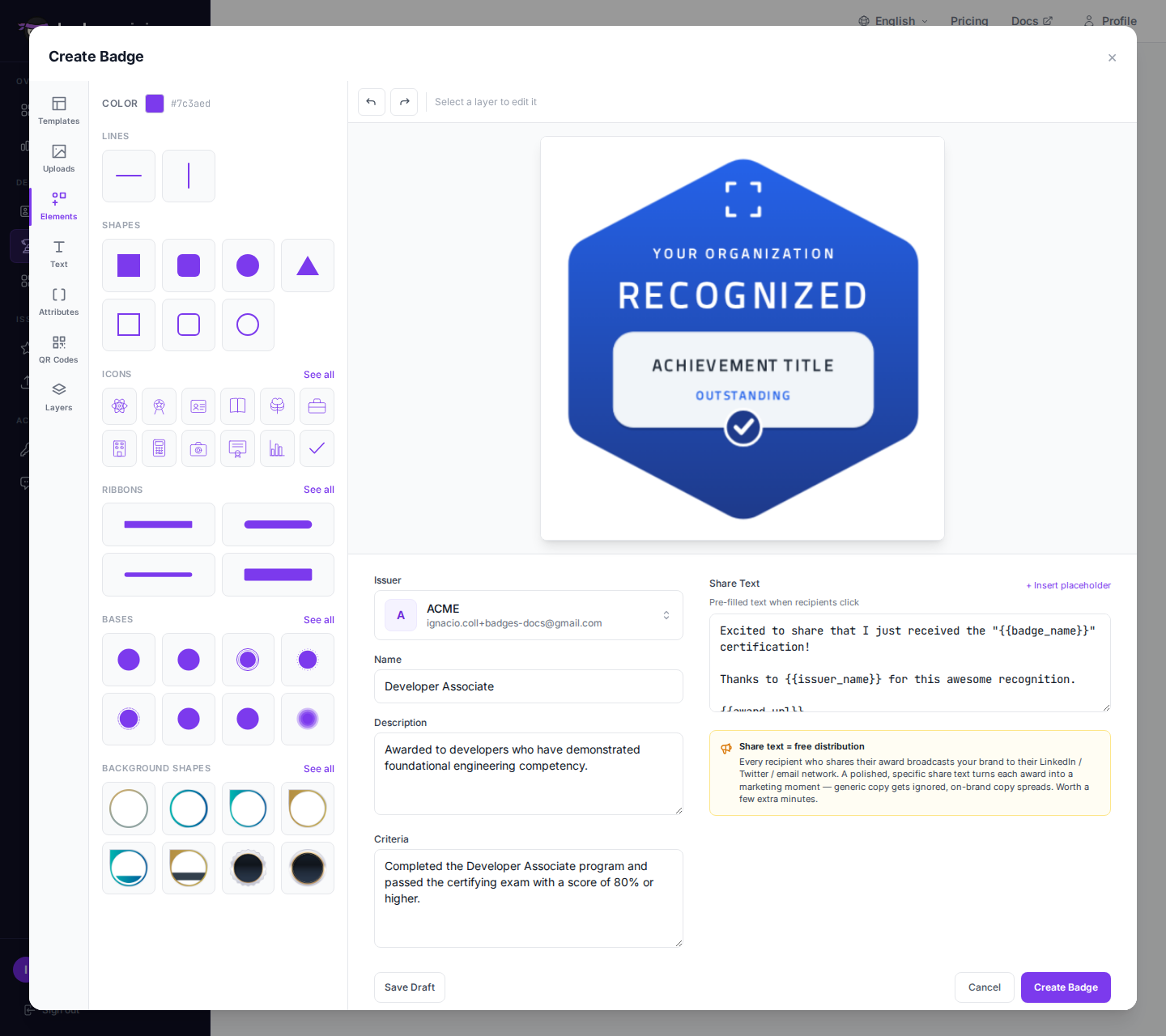
A few patterns that consistently produce clean results:
- Background shapes first. Pick a pre-designed frame as your base layer, then layer text and icons on top. This is faster than assembling a badge shape-by-shape and gives you built-in visual balance.
- One icon, not five. Pull from the built-in icon set (50+ icons covering skills, achievement, and subject-matter categories) and use exactly one as the focal point. Badges with a single clear icon get recognized — and shared — more than badges cluttered with decoration.
- Snap-to-grid alignment. Every element snaps to alignment guides as you drag it, and you can multi-select several elements to nudge or resize them together. You don’t need a design eye to get straight lines and centered text; the grid does it for you.
- Upload your own logo or artwork. If your organization has a logo, drop it in via custom upload rather than relying only on the built-in icon library. It’s the single fastest way to make a badge look “official” rather than “templated.”
Step 4: Set the typography
Switch to the Text panel to add your credential’s title, recipient line, or any supporting copy, and use the ready-made text combinations if you want a heading + body pairing without composing it from scratch.
Once text is on the canvas, the contextual toolbar gives you the font picker (11 fonts, plus custom font upload if your brand has one), a +/− size stepper, color, and alignment — all without leaving the canvas. Keep the credential title short enough to read at thumbnail size; that’s the size most recipients will actually see it at, in a LinkedIn feed or an email signature.
If your certificate needs to show something that changes per recipient — a grade, a date, a course name — the Attributes panel lets you drop in dynamic tokens that resolve automatically for each award, so you design the layout once and it’s correct for every recipient without manual editing.
Step 5: Check your layer order
Complex compositions (background shape + icon + ribbon + two text blocks) can get visually tangled fast. The Layers panel gives you a straightforward list to reorder, hide, or delete any object without hunting for it on the canvas.
If something is hidden behind another shape, this is where you fix it — drag it above the offending layer, or temporarily hide layers to isolate what you’re working on. It’s a small panel, but it’s the difference between fighting the canvas for ten minutes and fixing a stacking order in ten seconds.
Step 6: Fill in the badge details
The metadata form beneath the canvas is not an afterthought — it’s what makes this a real Open Badge rather than just a picture. Fill in:
- Name — the credential’s title, matching what’s on the visual design
- Description — what the badge represents, in plain language
- Criteria — what a recipient had to do to earn it
These fields become part of the Open Badge v2.0 BadgeClass JSON-LD, which is what makes the credential machine-verifiable rather than just a nice-looking image. A verifier — a recruiter, an HR system, another platform — can pull this data programmatically from the public verification endpoint, not just eyeball a JPEG.
Step 7: Review the finished result
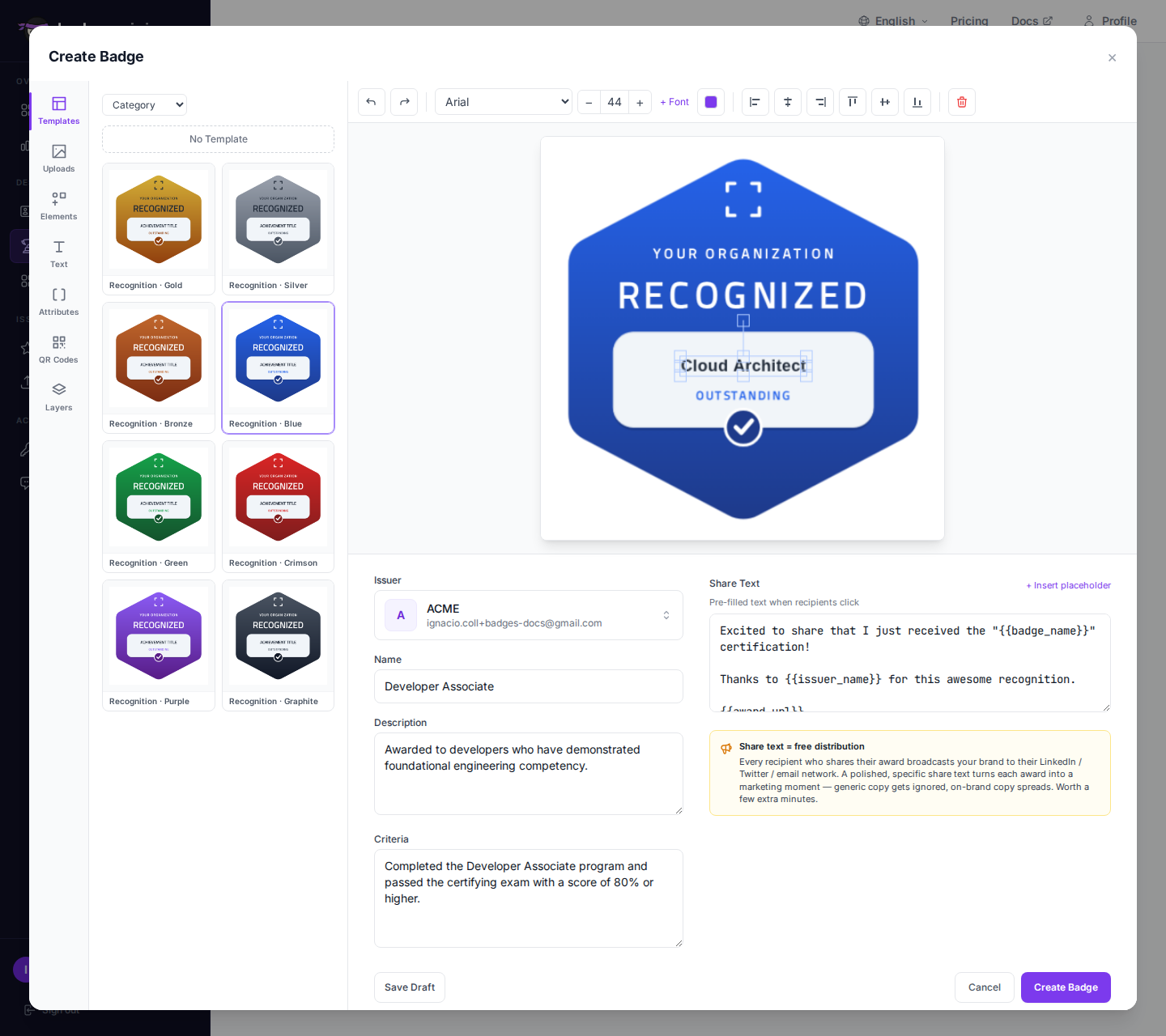
At this point you’ll see the finished badge next to its completed details, with the option to save it as a draft or create it outright. Nothing here is permanent until you say so — save as a draft if you want a colleague to sign off first.
What the recipient actually gets
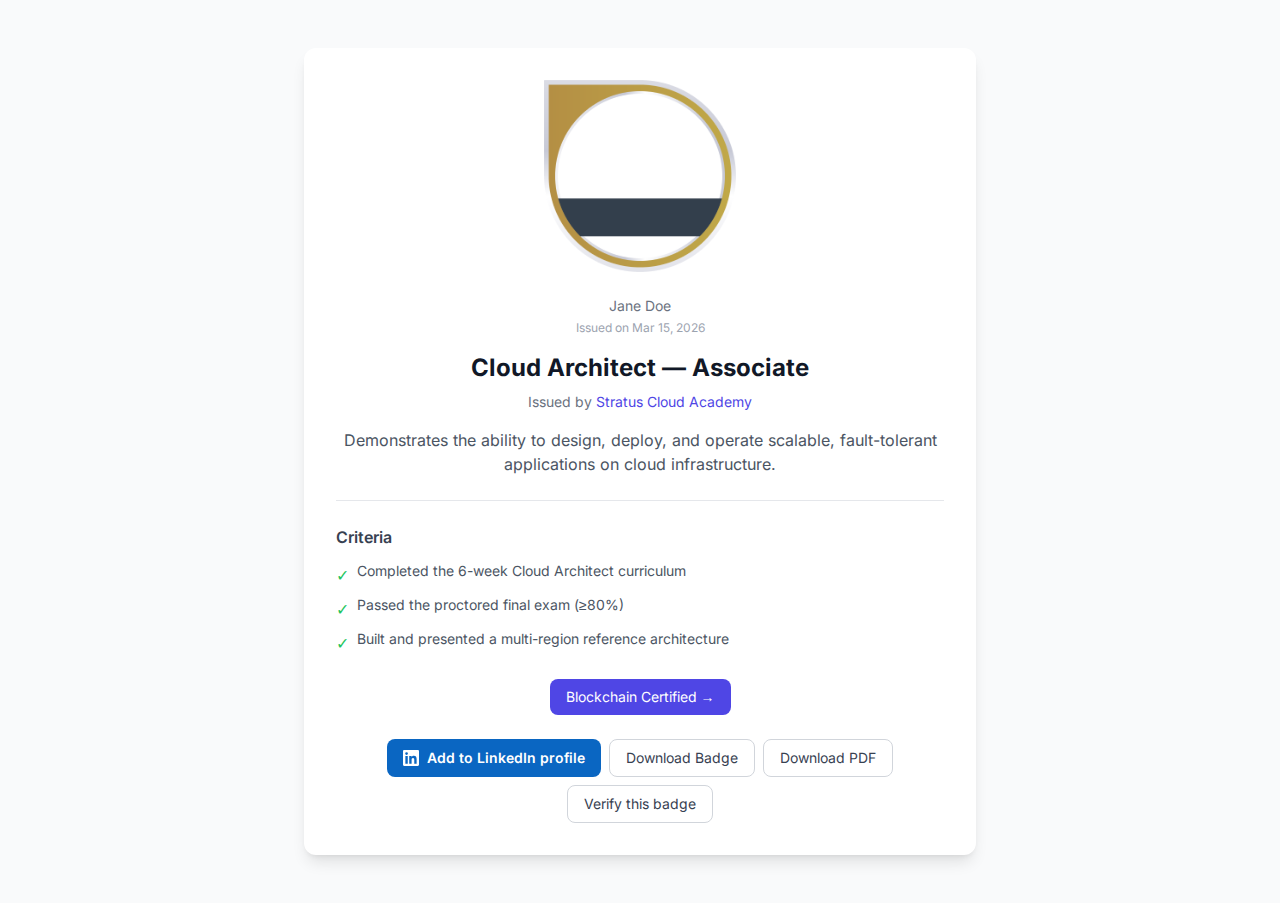
This is the part that’s easy to design for on paper and forget to check in practice. Once you award this badge to a recipient, they get:
- A unique verification URL for their specific award — not a shared link for the badge class, one link per person
- A QR code they can drop into a printed program, slide, or physical certificate
- A downloadable A4 PDF certificate, generated automatically from the same badge design and award data — so you don’t design the badge and then separately design a certificate
- Engagement stats back on your dashboard, so you can see when a badge is viewed or shared, not just that it was issued
- Access from badges.ninja/me, their recipient portal, via magic-link sign-in — no password to set up or forget
The PDF certificate and the digital badge aren’t two separate deliverables you have to design twice. They come from the one design you just built — see Open Badges vs PDF Certificates for a longer look at why most programs end up shipping both formats from a single source of truth.
Issuing at scale once your template is done
A single well-designed badge template pays for itself the moment you need to issue more than one credential. Once your shape, colors, and dynamic attribute tokens are set up, awarding it to 5 recipients or 5,000 is the same design work — zero. For cohorts, bulk-CSV upload handles the recipient side entirely; see How to Issue Open Badges from a CSV in Under 5 Minutes for that workflow, including pause/resume for large batches.
When you don’t need the designer at all
Some programs already have a certificate image — produced by a designer, generated by another system, or pulled from an LMS — and just need the verification layer around it. You can skip the visual designer entirely and upload a custom badge image directly, then issue against it through the same badge details form. The Open Badge v2.0 output, verification URL, QR code, and PDF wrapper all work identically whether the image came from the built-in editor or your own file.
Common first-timer mistakes
A few things trip up nearly everyone the first time through, and all of them are quick to fix once you know to look for them:
- Too much text on the badge face. A badge is not the place for a full description — that lives in the criteria field, not the canvas. Keep the visible text to a title and maybe an org name; save detail for the description field, which shows up on the verification page instead.
- Low-contrast text over a busy background. If you’ve layered a background shape under your text, check contrast before finishing — text that reads fine at full size on your monitor often disappears at thumbnail size on a phone.
- Forgetting the criteria field. It’s easy to design the visual, fill in the name, and skip criteria because it doesn’t show up on the canvas. Verifiers and recipients both read it, and licensing boards or employers checking a credential specifically look for it.
- Designing before deciding on dynamic fields. If a course name, score, or date needs to vary per recipient, set that up as an attribute token before you finalize layout and spacing — retrofitting a dynamic field into a tightly spaced design later means redoing alignment.
Getting comfortable with it
The biggest time sink for first-time users isn’t the tools — it’s decision paralysis over which of 80+ templates to start from. A reasonable rule: pick the shape category (badge vs. certificate layout) based on what you’re issuing, then don’t second-guess the specific template. Every element inside it is editable, so the starting template is a scaffold, not a constraint. You’ll have something on-brand and verifiable well before you’ve spent as much time as you would have opening a design tool cold.
Ready to issue your first verifiable credential? Start free at badges.ninja — visual designer, public verification page, PDF certificate, Open Badge v2.0 output. No credit card required.
Related reading: Free digital badge & certificate maker → · Badges Ninja plans & pricing · Credly alternative · Certifier alternative · Cheapest Open Badges platform · Best Open Badges platforms (ranked)
About the author
Nacho Coll
Founder & Engineer at Badges Ninja
Nacho founded Badges Ninja to make issuing verifiable digital credentials as simple as a single API call — Open Badge v2.0 badges and certificates, minted, hosted, and verifiable without standing up your own issuer infrastructure. Writes about the Open Badges spec, credential verification, and running a credentialing platform serverless on AWS, from the operator side of the wire.