
How to Revoke an Open Badge (And What Happens to the Recipient's Copy)
Revocation in Open Badges: how it works, what changes for the recipient, and the right way to handle "issued by mistake" vs "credential expired" vs "policy violation".
 By Nacho Coll
Nacho founded Badges Ninja to make issuing verifiable digital credentials as simple as a single API call — Open Badge v2.0 badges and certificates, minted, hosted, and verifiable without standing up your own issuer infrastructure.
Sooner or later every program that issues digital credentials has to take one back. A certificate went to the wrong person. A learner was found to have cheated on the final assessment. A partner contract ended and the badges that said “Certified Partner” should no longer be valid. Issuing is the happy path; revocation is the part that decides whether your credentials can actually be trusted.
This guide explains how revocation works in Open Badges, what the recipient does and does not see afterwards, and how to revoke one credential or a few hundred at https://badges.ninja, from the dashboard or the API.
What “revoke” means in Open Badges
In the Open Badges v2.0 specification, every issued badge is an assertion: a small JSON-LD document hosted at a public URL that says “this issuer awarded this badge to this recipient on this date.” Revocation is simply a change to that hosted document. The assertion gets "revoked": true, and optionally a "revocationReason" string explaining why.
That design has an important consequence that surprises many program owners:
- The hosted assertion is the source of truth. Anyone who verifies the credential by fetching the assertion URL or opening the verification page sees the revoked state immediately.
- Copies are not recalled. If the recipient downloaded the badge image or the JSON, or pinned it to a portfolio, that file does not change. It still contains a link back to your hosted assertion, so a verifier who follows the link will see it is revoked, but a person glancing at a saved PNG will not.
Revocation is therefore a statement made at the verification endpoint, not a deletion. Think of it as stamping “VOID” on the master record rather than chasing down every photocopy.
If you want a closer look at the document itself, our Open Badge JSON-LD walkthrough goes through each field.
Revoke, reissue, or delete: pick the right action
Before you click anything, decide which of three actions fits the situation. They are not interchangeable.
| Situation | Best action | Why |
|---|---|---|
| Credential was issued to the wrong person or with a typo | Delete (if never sent) or Revoke, then reissue | Delete removes the record entirely; revoke keeps an audit trail |
| Learner violated a policy or the credential was obtained improperly | Revoke, with a reason | The record stays verifiable as revoked, which is what you want in a dispute |
| Credential simply reached its end date | Do nothing; set an expiry when you issue | Expiry is a normal lifecycle event, not a revocation |
| Program cancelled, cohort voided | Bulk revoke | One job, one reason, applied to everyone |
| Details were wrong but the credential is otherwise valid | Edit before sending, or revoke and reissue after sending | Keeps the recipient’s experience clean |
Two rules of thumb:
- Prefer revoke over delete for anything real. A deleted credential’s public page returns a not-found error. A revoked one still resolves and clearly says it is revoked, which is far better evidence if anyone later asks what happened.
- Never use revocation as a substitute for expiry. If a credential is only valid for two years, set an expiry date when you issue it. A badge that quietly lapses is different from one that was withdrawn, and your verification page should say which.
Revoking from the dashboard
For a handful of credentials, the dashboard is the fastest route and needs no code.
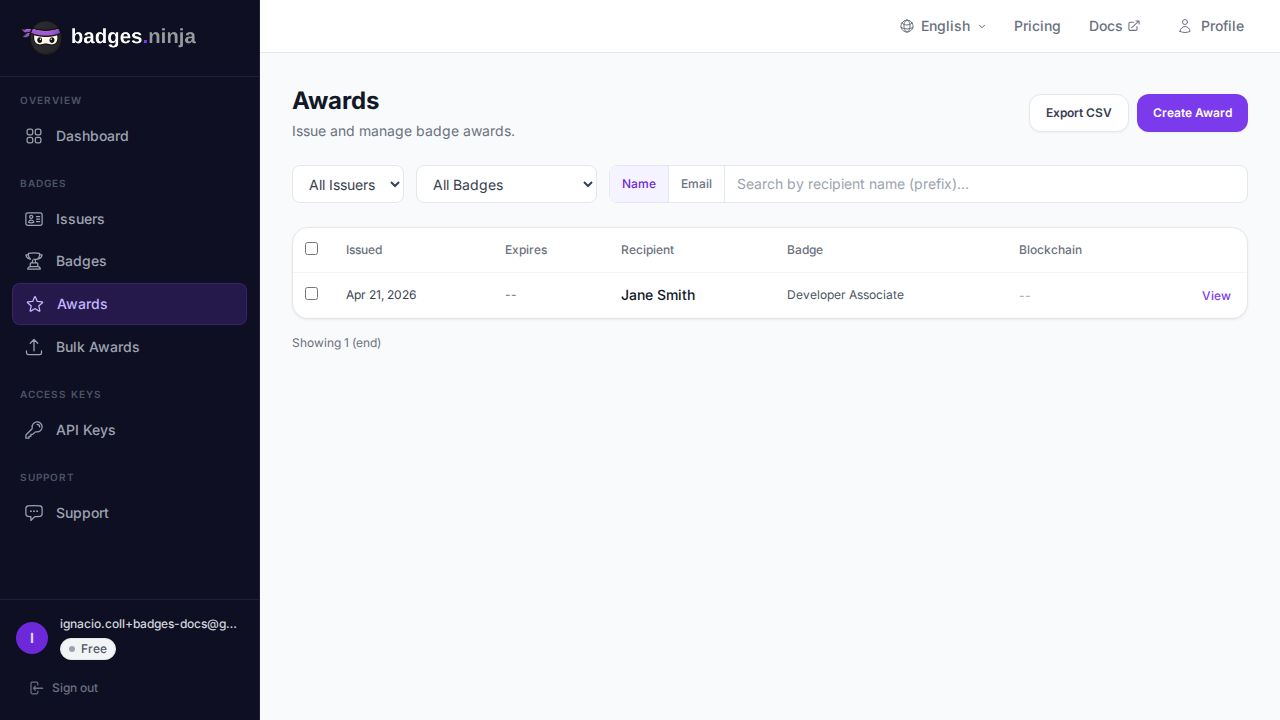
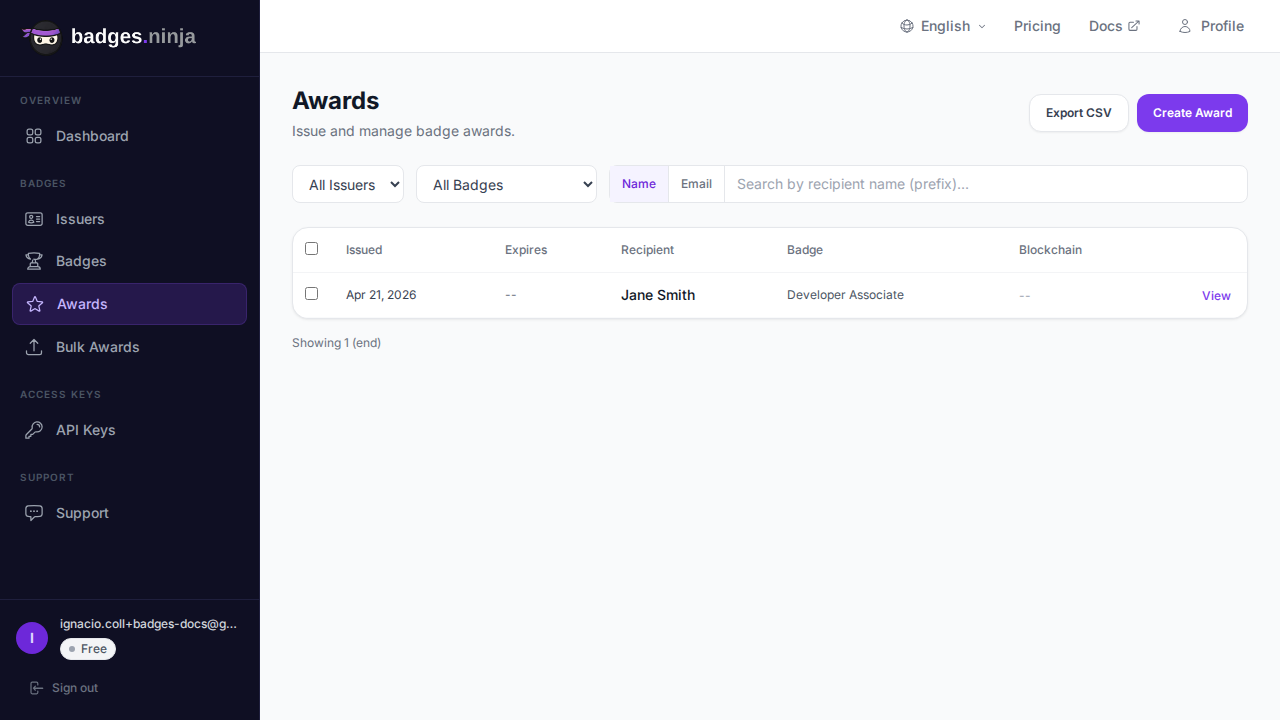
- Sign in and open Awards from the sidebar.
- Find the credential. The list shows the recipient, badge name, issue date and expiry, and you can search by recipient.
- Click the row (or View) to open the credential detail modal.
- Click Revoke.
- In the confirmation dialog, optionally enter a reason, and optionally tick Email the recipient that their credential was revoked.
- Confirm.
The credential stays in your list with a red Revoked chip next to the recipient, so you and your team can always see what was withdrawn. Revoking does not refund the credential against your plan quota. You issued it, it counted.
A note on the reason field
The reason is optional, but fill it in. It is stored with the credential, appears as the revocationReason in the public Open Badges assertion, and is included in the webhook payload your systems receive. Because it is public on the assertion, write it as you would for an outside reader. “Issued in error” or “Program cancelled” is fine. “Jane cheated on question 14” is not. Keep personal detail in your own records and keep the public reason neutral.
Should you email the recipient?
Usually yes. A learner who finds out their credential is dead only when an employer clicks the verification link has every right to be unhappy with you. The notification is opt-in precisely because some revocations (a bulk clean-up of test awards, for example) do not need to bother anyone. Our guidance:
- Email when the revocation affects a real person who might still be displaying the credential.
- Skip the email when you are tidying internal test data or voiding credentials that were never sent.
Revoking many credentials at once
Programs rarely need to revoke one credential in isolation; more often it is a whole cohort. In the Awards list:
- Tick the checkboxes for the credentials you want to withdraw.
- Click Revoke selected in the bulk-action bar.
- Add a reason and decide whether to notify recipients, then confirm.
Bulk revocation runs as a durable background job, so a few hundred credentials will not time out your browser tab. Credentials that are already revoked are skipped rather than failing the batch, and a job interrupted partway can be resumed. The same machinery powers bulk issuing from a spreadsheet, which we cover in how to issue Open Badges from a CSV.
Revoking through the API
If your learning system or HR platform decides who is no longer certified, you can revoke programmatically. The endpoint is POST /awards/{awardId}/revoke, authenticated with an API key (X-Api-Key: bws_<32-hex>) or a Cognito Bearer token. The award ID goes in the path; reason and notify go in the JSON body and both are optional.
Using curl:
curl -X POST https://api.badges.ninja/awards/<award-id>/revoke \
  -H "X-Api-Key: bws_YOUR_KEY_HERE" \
  -H "Content-Type: application/json" \
  -d '{"reason":"Issued to the wrong recipient","notify":true}'
# 200 -> {"revoked":true,"awardId":"<award-id>"}
In JavaScript:
const res = await fetch(`https://api.badges.ninja/awards/${awardId}/revoke`, {
  method: "POST",
  headers: { "X-Api-Key": API_KEY, "Content-Type": "application/json" },
  body: JSON.stringify({ reason: "Program cancelled", notify: false }),
});
const { revoked } = await res.json(); // true
And in Python:
import requests
res = requests.post(
    f"https://api.badges.ninja/awards/{award_id}/revoke",
    headers={"X-Api-Key": API_KEY},
    json={"reason": "Program cancelled", "notify": False},
)
print(res.json()["revoked"])  # True
Some practical details worth knowing:
- It is idempotent. Revoking a credential that is already revoked returns the same success response and does not send a second notification. That makes it safe to call from a retrying job.
- Reasons are truncated to 500 characters.
notifydefaults to false. Nothing is emailed unless you ask.- Bulk revoke is available through the bulk endpoint with
action: "revoke"and a list of award IDs; it returns a job ID you can track. The full parameters are in the awards API reference.
You only need the API when revocation is driven by another system. For a one-off, the dashboard is quicker and has a confirmation step that protects you from a mistyped ID.
What the recipient and the verifier see
After you revoke, here is what changes, and how quickly.
On the public verification page. The page at https://badges.ninja/awards/<award-id> shows the credential as revoked, and the page title for social sharing is prefixed with “[Revoked]” so a shared link does not look like a live credential in a preview card.
In the Open Badges v2.0 assertion. The hosted JSON at https://api.badges.ninja/certify-badge/award/<award-id> now carries "revoked": true, plus "revocationReason" if you gave one. Revoked assertions are cached for only about 30 seconds, whereas live ones are cached for five minutes, so the change reaches verifiers quickly.
In the Open Badges 3.0 credential. Revocation also flips the credential’s bit in a W3C Bitstring Status List, which is how verifiable-credential wallets and verifiers detect it. That list is cached briefly, so expect propagation within about a minute. If you are weighing the two versions, see Open Badges v2 vs v3.
In the recipient’s own copy. Nothing changes on the file they downloaded. The badge image on their laptop looks identical. What changes is the outcome of verification: anyone who clicks through or checks the credential programmatically gets the revoked answer. If you notified them, they also have an email explaining why.
On LinkedIn. A credential added to a LinkedIn profile is a link plus metadata that points back at your verification page. LinkedIn does not poll for revocation on your behalf, so the entry may linger on the profile, but anyone who follows the link lands on the revoked page. This is another reason to send the notification and ask the recipient to remove the entry.
Tell your own systems: webhooks
Revocation is rarely the end of the story inside your organisation. The learner may need to lose access to a community, an employer record may need updating, or a CRM tag may need removing. Badges Ninja emits a credential.revoked webhook event when a credential is revoked, with the award URL and the reason:
{
  "awardId": "https://api.badges.ninja/certify-badge/award/<award-id>",
  "reason": "Issued in error"
}
Subscribe to it and your downstream systems stay in step without anyone remembering to update them. Setup details are in the webhooks documentation, and we cover the wider event model in webhook setup for badge events.
A simple revocation policy you can adopt today
Tools are the easy half. The harder half is deciding in advance when you will revoke and who is allowed to. A short written policy prevents arguments later. A workable template:
- Grounds for revocation. List them: issued in error, obtained through misconduct, requirement no longer met (for example, a membership lapsed), or program withdrawn.
- Who decides. Name a role, not a person. Limit revoke permission to that role.
- Notice. State that recipients are told by email, with the reason, unless the credential was never delivered.
- Appeal. Give recipients a way to contest the decision and say how long you will take to respond. If an appeal succeeds, reissue a fresh credential rather than trying to undo the revocation, and the history stays clean.
- Record. Keep an internal note of who revoked what and why, separate from the neutral public reason.
Publish the policy on the same page where you describe the credential, so earners know the rules before they sign up.
Common mistakes to avoid
- Deleting when you meant to revoke. Delete is permanent and cannot be undone, and it makes the public page disappear. Use it for genuine mistakes on credentials nobody has seen.
- Putting private details in the reason. It is public on the assertion.
- Expecting saved copies to change. Revocation lives at the verification endpoint. Tell recipients to remove the credential from profiles and portfolios.
- Revoking instead of expiring. Use an expiry date for time-limited credentials.
- Assuming a refund. Revoked credentials still count against your plan quota.
- Forgetting downstream systems. Wire up the webhook so access and records follow the credential status.
Frequently asked questions
Can I undo a revocation? Not through the interface. If you revoked by mistake, issue a new credential to the recipient. The revoked one remains as part of the audit trail.
Does the recipient need to do anything? No. If you chose to notify them, they receive an email. Otherwise the change happens silently at the verification page.
Does revocation work for credentials that were never sent? Yes, though for an unsent credential with a simple mistake you may prefer to edit it before sending, or delete it if no one has seen it.
Is there a limit on how many I can revoke? Bulk revocation runs as a resumable background job, so large batches are handled in one operation instead of one by one.
Will employers see that a credential was revoked? Anyone who verifies it through its public URL or assertion sees the revoked status and the reason, if you gave one.
Conclusion
Revoking an Open Badge is a small action with real consequences for trust. Do it from the dashboard when it is a single credential, use bulk revoke for a cohort, and reach for the API or webhooks when another system owns the decision. Keep reasons neutral, notify people who need to know, and remember that revocation changes what verifiers see, not the files already in recipients’ hands.
Ready to issue your first verifiable credential? Start free at badges.ninja — visual designer, public verification page, PDF certificate, Open Badge v2.0 output. No credit card required.
About the author
Nacho Coll
Founder & Engineer at Badges Ninja
Nacho founded Badges Ninja to make issuing verifiable digital credentials as simple as a single API call — Open Badge v2.0 badges and certificates, minted, hosted, and verifiable without standing up your own issuer infrastructure. Writes about the Open Badges spec, credential verification, and running a credentialing platform serverless on AWS, from the operator side of the wire.
More from Nacho Coll
- Coding Bootcamp Open Badges: Issuing Verifiable Credentials at Cohort ScaleNov 19, 2026 · 11min read
- Setting Up Webhooks for Badge Events: Real-Time Integration with Your BackendNov 16, 2026 · 9min read
- Open Badge Expiration and Renewal: Lifecycle Management for Time-Limited CredentialsNov 12, 2026 · 11min read