Issuing Open Badges from Notion: 3 Patterns for Course Creators
Three working patterns for triggering Open Badge issuance from Notion: button automation, database webhook, and a no-code Make.com bridge.
 By Nacho Coll
 Nacho founded Badges Ninja to make issuing verifiable digital credentials as simple as a single API call — Open Badge v2.0 badges and certificates, minted, hosted, and verifiable without standing up your own issuer infrastructure.
A lot of course creators, cohort leads, and community managers run their whole program out of Notion. The roster is a database. Each row is a learner. A checkbox or a status column says whether they finished. It is a tidy system, right up to the moment someone asks for proof of completion, and the answer is a screenshot of a Notion page or a hand-made PDF.
The fix is not to move your program out of Notion. It is to let a change in Notion, such as a status flipping to “Completed”, issue a verifiable credential on its own. This guide shows three patterns for doing that with the Badges Ninja API, from the least setup to the most control. None of them needs a server of your own.
One thing to know before you start
Every pattern below ends with the same call: POST https://api.badges.ninja/awards. That endpoint expects a specific JSON body:
{
  "badgeId": "<badge-id>",
  "recipient": { "name": "Jane Smith", "email": "jane@example.com" },
  "issuedOn": "2026-10-05"
}
Three details trip people up:
recipientis a nested object withnameandemail, not two flat fields.issuedOnis required. It can be an ISO date string or epoch milliseconds.recipient.namemust be at least 5 characters. A learner who typed “Jo” in your form will get a400back.
Notion’s own webhook action sends Notion’s page format, not this body. That is why each pattern below puts a small translation step between Notion and Badges Ninja. Plan for that step and the rest is easy.
Before any pattern: badge and API key
You need two things once, regardless of which pattern you choose.
A badge to award. Design it in the visual designer (80+ templates, shapes, icons, and your own upload), then copy its ID. You can also list your badges with GET /badges and read the id field. If you have not created one yet, the API quickstart walks through it in a few minutes.
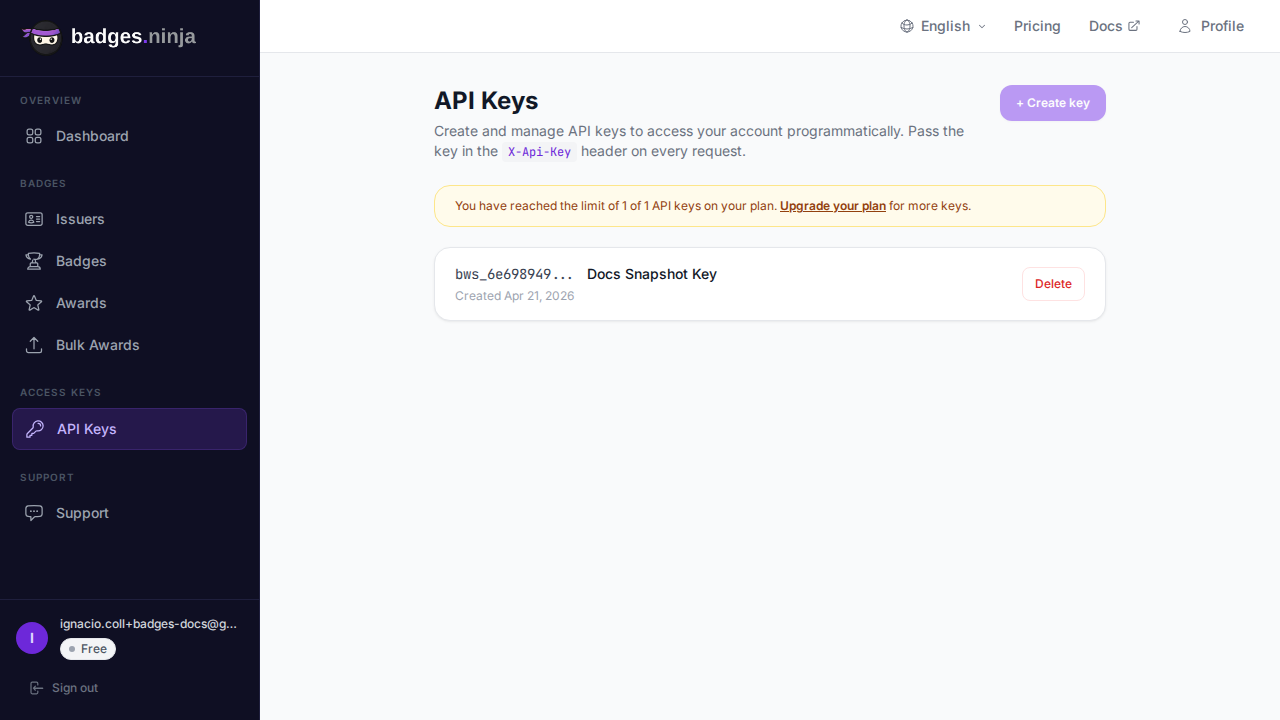
An API key. Open Settings, then API Keys in your dashboard and create a key named after the job, for example notion-course-completions. Naming it this way means you can revoke only this integration later without breaking anything else.
The key is shown in full only once, right after you create it. Paste it straight into the credential store of whichever automation tool you use, never into a Notion page, since Notion pages are easy to share by accident.
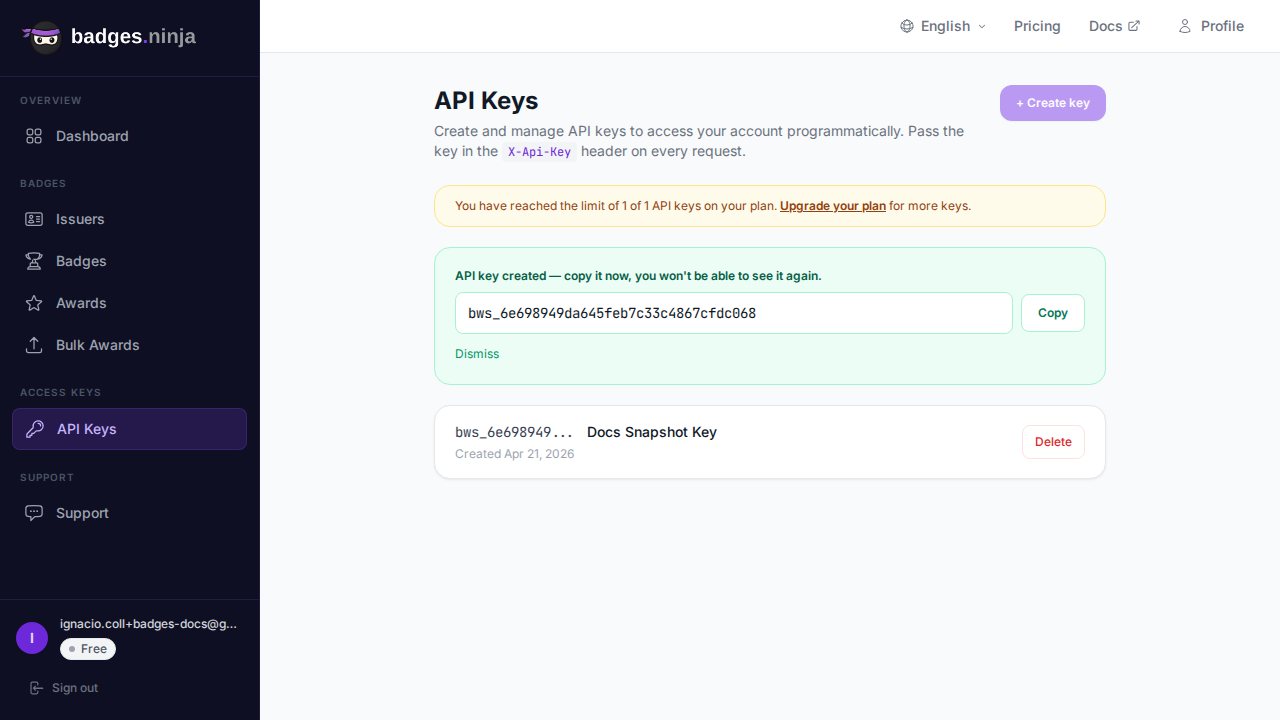
The Free plan includes one API key, which is enough for any of these patterns. See the pricing page for what Starter and Pro add.
Set up your Notion database for issuing
All three patterns read from a database, so it pays to shape it well first. A minimal roster needs:
| Property | Type | Why it matters |
|---|---|---|
| Name | Title | Becomes recipient.name (5 characters or more) |
Becomes recipient.email | ||
| Status | Status or Select | The trigger, for example Enrolled, In progress, Completed |
| Completed on | Date | Becomes issuedOn |
| Badge issued | Checkbox | Your guard against duplicates |
| Award link | URL | Stores the verification URL after issuing |
The Badge issued checkbox is the most important column. Every trigger source can fire more than once for the same row, and without a guard a learner can receive the same credential twice. Each pattern below checks that box before issuing and sets it afterwards.
Pattern 1: A Notion button that sends a webhook
Best for: small cohorts where a human reviews each learner before approving, such as a facilitator who clicks “Issue badge” once the final project is marked.
Notion database buttons and automations can run a Send webhook action, which posts to a URL you choose, with custom headers, and includes properties from the row. That action is available on Notion’s paid plans, so check yours first.
Because Notion’s payload is not the body Badges Ninja expects, you point the button at a catch-all webhook in Make rather than at api.badges.ninja directly. The flow looks like this:
- In Make, create a scenario that starts with a Custom webhook module and copy the URL it gives you.
- In Notion, add a button property to the database, named for example
Issue badge. - Add the action Send webhook and paste the Make URL.
- Include the
Name,Email, andCompleted onproperties in the payload. - In Make, run the scenario once so the webhook module learns the shape of Notion’s data.
- Add an HTTP, Make a request module after it, set up as described in the Make section below.
Click the button on one row and watch the scenario run. The learner receives their award email, and a verification page exists immediately at https://badges.ninja/awards/<awardId>.
The advantage of this pattern is that a human is in the loop. Nothing is issued until someone clicks. The cost is that it is one click per learner, so it does not scale to a graduation day with 300 people.
Pattern 2: Database row update through Make.com
Best for: programs where completion is already tracked in a column and you want issuing to happen on its own, without a click.
Make has a Notion module that can watch a database for changes. The trigger is a status change rather than a button, which means the facilitator just does their normal job of updating the roster.
- Create a new scenario and add Notion, Watch Database Items as the trigger, pointed at your roster.
- Add a Filter after it:
StatusequalsCompletedandBadge issuedis not checked. - Add HTTP, Make a request with the settings shown below.
- Add Notion, Update a Database Item to tick
Badge issuedand write the verification URL intoAward link.
The HTTP module settings:
{
  "url": "https://api.badges.ninja/awards",
  "method": "POST",
  "headers": [
    { "name": "X-Api-Key", "value": "bws_YOUR_KEY_HERE" },
    { "name": "Content-Type", "value": "application/json" }
  ],
  "bodyType": "Raw",
  "contentType": "JSON (application/json)"
}
And the raw JSON body, mapping Notion fields from the trigger:
{
  "badgeId": "<badge-id>",
  "recipient": {
    "name": "{{Name}}",
    "email": "{{Email}}"
  },
  "issuedOn": "{{Completed on}}"
}
A successful call returns HTTP 200 with a body of { "awardId": "<guid>" }. The verification URL is not in the response, so in the final Notion update step you build it yourself: https://badges.ninja/awards/ followed by the awardId value.
Two practical tips for this pattern. First, set the scenario to run every 15 minutes rather than instantly; for course completions nobody needs a badge within seconds, and a slower schedule uses fewer operations. Second, store the key in a Make Connection or a scenario variable instead of typing it into the module, so you can rotate it in one place.
The Filter step is doing real work here. Without the Badge issued check, every run would re-evaluate every completed row and try to issue again. With it, each learner is processed exactly once.
Pattern 3: A Notion form feeding Zapier
Best for: self-paced programs where learners declare their own completion, such as “I finished the course, here is my link”, and you want issuing to happen after light validation.
Notion forms let anyone submit a response that lands as a new row in a database, so the form is the front door and the database is the record. Zapier can watch that database and act on every new row.
- Create a Notion form on top of a
Completionsdatabase with fields for name, email, and a proof link or course code. - In Zapier, set the trigger to Notion, New Database Item.
- Add a Filter by Zapier step that checks the course code against the value you expect. This stops random or test submissions from earning a credential.
- Add the action Webhooks by Zapier, POST to
https://api.badges.ninja/awards. - Set the headers
X-Api-KeyandContent-Type: application/json, and use the JSON body below with Notion fields mapped in.
{
  "badgeId": "<badge-id>",
  "recipient": {
    "name": "{{Name}}",
    "email": "{{Email}}"
  },
  "issuedOn": "{{zap_meta_human_now}}"
}
This is the same Zapier setup used in our Zapier, Make, and n8n recipes, so if you already have a Zap issuing from Typeform or Stripe, you are copying a pattern you know.
A caution specific to forms: because anyone can submit, the filter step is not optional. Decide what counts as proof. A shared course code printed on the last lesson works for low-stakes programs. For anything employers will rely on, use Pattern 2 instead, where a person marks completion in the roster and the form is only used for contact details.
Which pattern should you choose?
| Situation | Pattern |
|---|---|
| Facilitator approves each learner by hand | 1, the button |
| Completion is already a column in your roster | 2, the Make.com watcher |
| Learners self-report and you filter | 3, the form and Zapier |
| Graduating 100 or more people at once | None; use bulk upload (see below) |
If you are unsure, start with Pattern 2. It asks the least of your learners and the least of your facilitators, and it works with the way most Notion rosters are already maintained.
Making the badge worth having
Automation gets the credential out the door. These choices decide whether anyone cares about it.
Put the verification link back in Notion. Writing the award URL into the Award link column gives you a record you can audit and share. Anyone with the link can check the credential without creating an account, because verification is public.
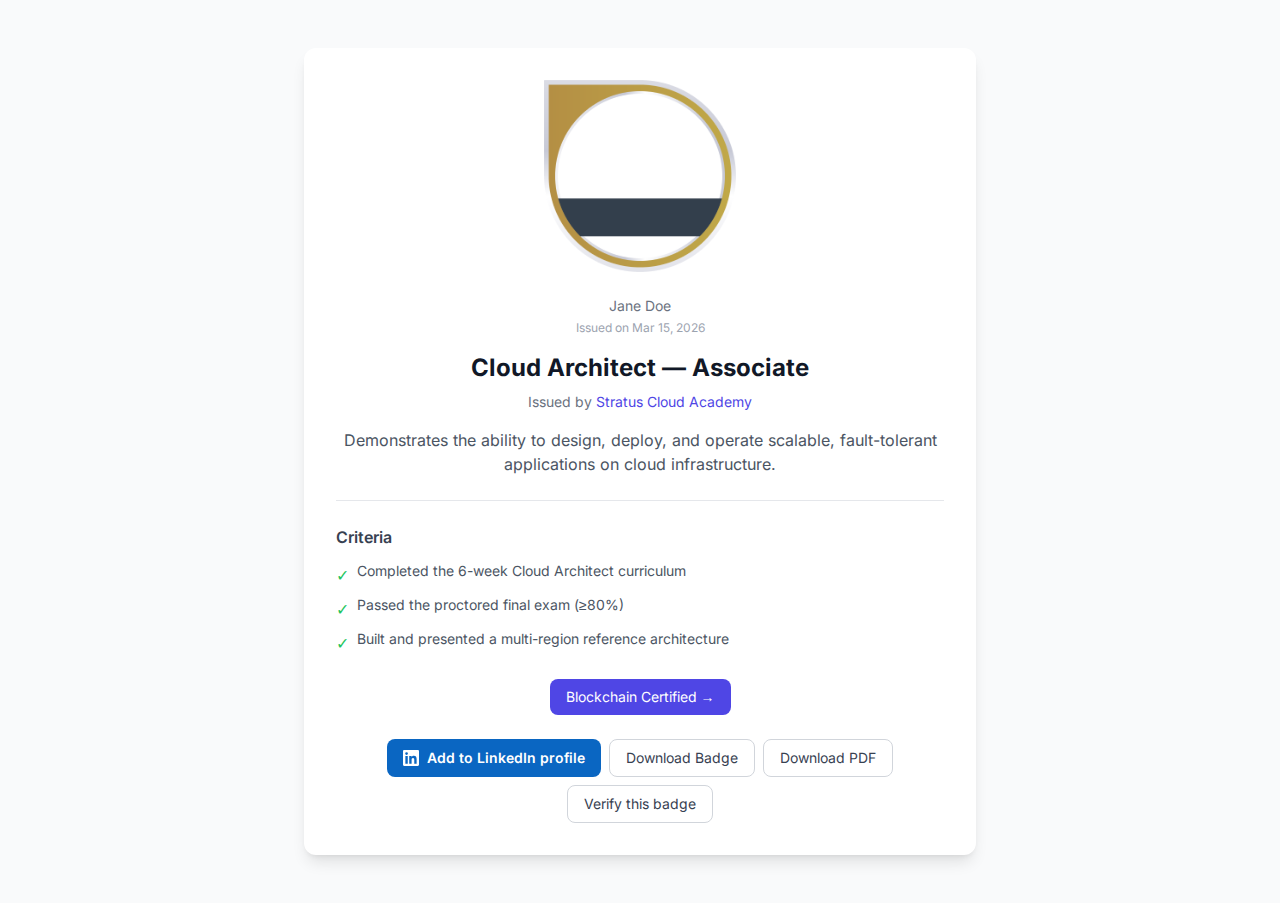
Let learners claim it on LinkedIn. Each award supports Add to LinkedIn, which fills in the certification fields for the learner. Mention it in your Notion welcome page so recipients know to use it. If you want the details, see our guide to the Add to LinkedIn button.
Use the recipient portal. Learners can sign in at https://badges.ninja/me with a magic link and no password, and see every badge they have earned in one place. That is useful when a learner loses the original email.
Keep the PDF. Every award also produces a PDF certificate. If your program has a handout or printed pack, link to the PDF from the same Notion row.
Troubleshooting the common failures
The call returns 400. Check the three body rules from the top of this article: nested recipient, a present issuedOn, and a name of at least 5 characters. A blank Notion property that maps to an empty string is the usual culprit, so add a filter for non-empty Name and Email.
The call returns 401. The key is missing from the header or was revoked. Confirm the header is spelled X-Api-Key, and that the key in your automation tool matches one still listed under Settings, API Keys.
The call returns 402. You have run out of credentials for the period. Your plan’s allowance is shown in the dashboard; upgrade or wait for the reset.
The call returns 404. The badgeId does not exist in your account. A badge ID copied from a duplicated scenario is the most common cause. Re-copy it from the dashboard.
Learners got two badges. Your guard column is not being checked or not being set. Confirm the filter excludes rows where Badge issued is ticked, and that the final Notion update step actually runs.
Everything shows green but nobody got an email. A successful run in Make or Zapier only means the HTTP call was made. Open the award in your dashboard, and check that the recipient address is a real one and not an unresolved placeholder from a mapping typo.
Testing safely
Before you point any of this at your real roster, create a separate test database with two or three rows that use your own email addresses. Run each pattern against it end to end and open the resulting verification page at https://badges.ninja/awards/<awardId>. Check that the name is spelled correctly, the date is right, and the badge looks the way you designed it. Only then switch the trigger over to the real database.
It also helps to keep that test database around. When you change your automation later, for example adding a second badge for an advanced track, you can rehearse the change without issuing anything to real learners.
When Notion is not the right tool for issuing
These patterns shine for steady, event-by-event issuing. They are the wrong fit for end-of-term batches. If you are graduating a whole cohort at once, export the roster to a CSV and use the dashboard’s bulk awards upload, which can pause and resume mid-batch. Our walkthrough on issuing Open Badges from a CSV covers the format. It is a better use of an afternoon than running 300 automation tasks and watching for failures.
A good rule of thumb: use Notion automation for the trickle, and bulk upload for the flood. Many programs end up using both, with the automation handling late finishers and the CSV handling the main cohort.
A word on privacy
Your Notion roster holds personal data, and the automation passes names and emails to a third-party tool before they reach Badges Ninja. Keep that in mind when you choose what to include. Send only what the award needs, which is a name and an email. Leave out phone numbers, notes, and anything about performance. On the Badges Ninja side, recipient emails are stored as SHA-256 hashes in the public credential, so the verification page does not expose them.
Summary
You do not need to leave Notion to issue real, verifiable credentials from it. A button with a Make webhook gives you human approval. A Make watcher on a Status column gives you hands-off issuing. A Notion form plus Zapier gives you self-service with a filter. All three end in the same POST /awards call, and all three rely on one guard checkbox to keep recipients from getting duplicates.
Pick the pattern that matches how your team already works, test it on a throwaway database, and let the badges follow the status column from then on.
Ready to issue your first verifiable credential? Start free at badges.ninja — visual designer, public verification page, PDF certificate, Open Badge v2.0 output. No credit card required.
About the author
Nacho Coll
Founder & Engineer at Badges Ninja
Nacho founded Badges Ninja to make issuing verifiable digital credentials as simple as a single API call — Open Badge v2.0 badges and certificates, minted, hosted, and verifiable without standing up your own issuer infrastructure. Writes about the Open Badges spec, credential verification, and running a credentialing platform serverless on AWS, from the operator side of the wire.